
What Should You Prepare First for a Humanoid Robot Course in Its First Semester?
Student laptop specs and the simulator install come before the robot. In the 12-week example, weeks 1 to 10 run without a robot and the physical robot is used in weeks 11 and 12. Here are the preparation steps in five stages.
For the first semester of a humanoid robot course, prepare the student laptops and the simulator before the robot. This is because the first 10 of the 12 weeks are taught inside the simulator.
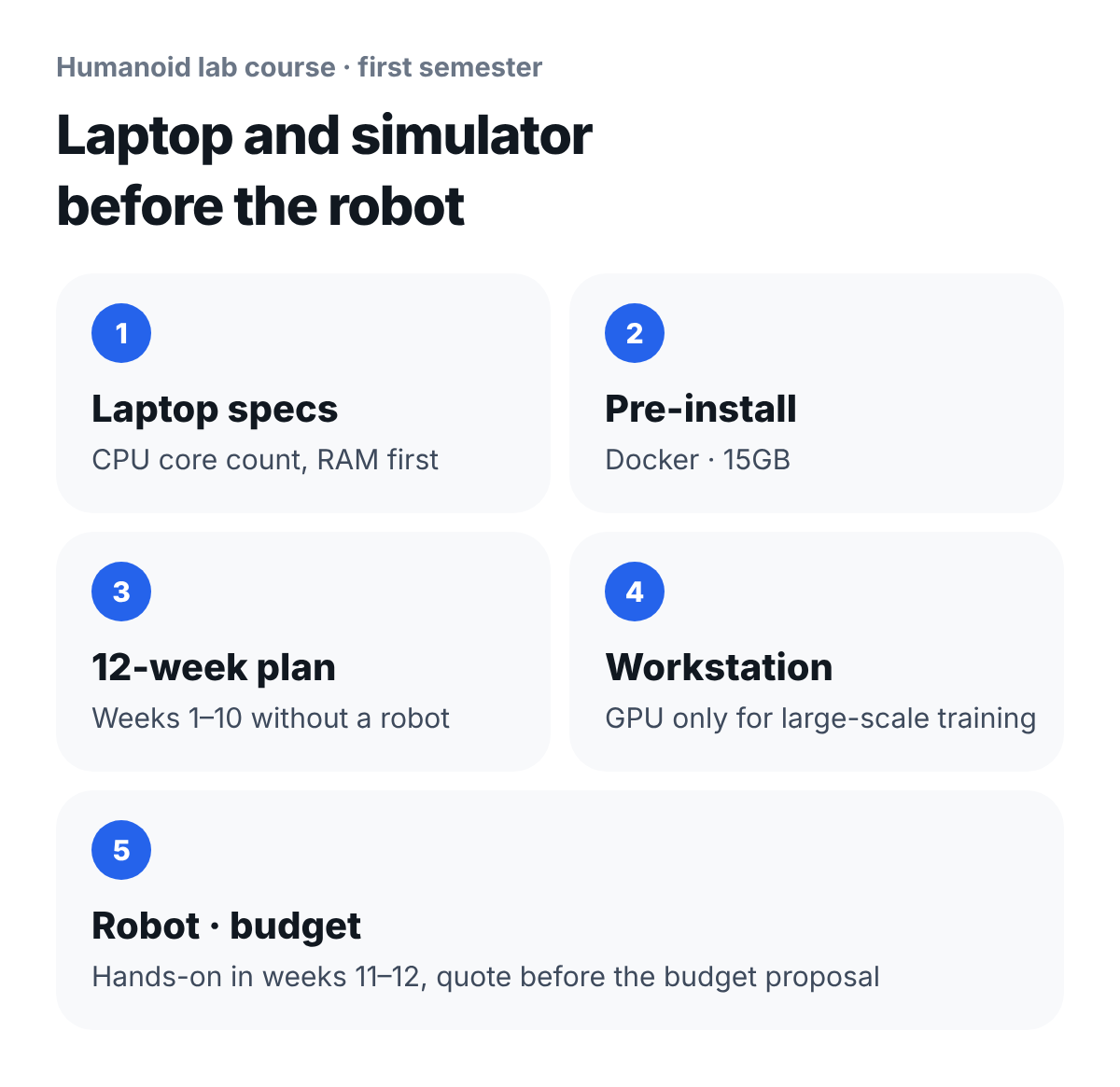
The specs and installation conditions below are values we measured by installing Booster Studio and the simulators ourselves.
1. What do you check first in a student laptop?
Check the CPU core count first, then RAM, and the graphics card last.
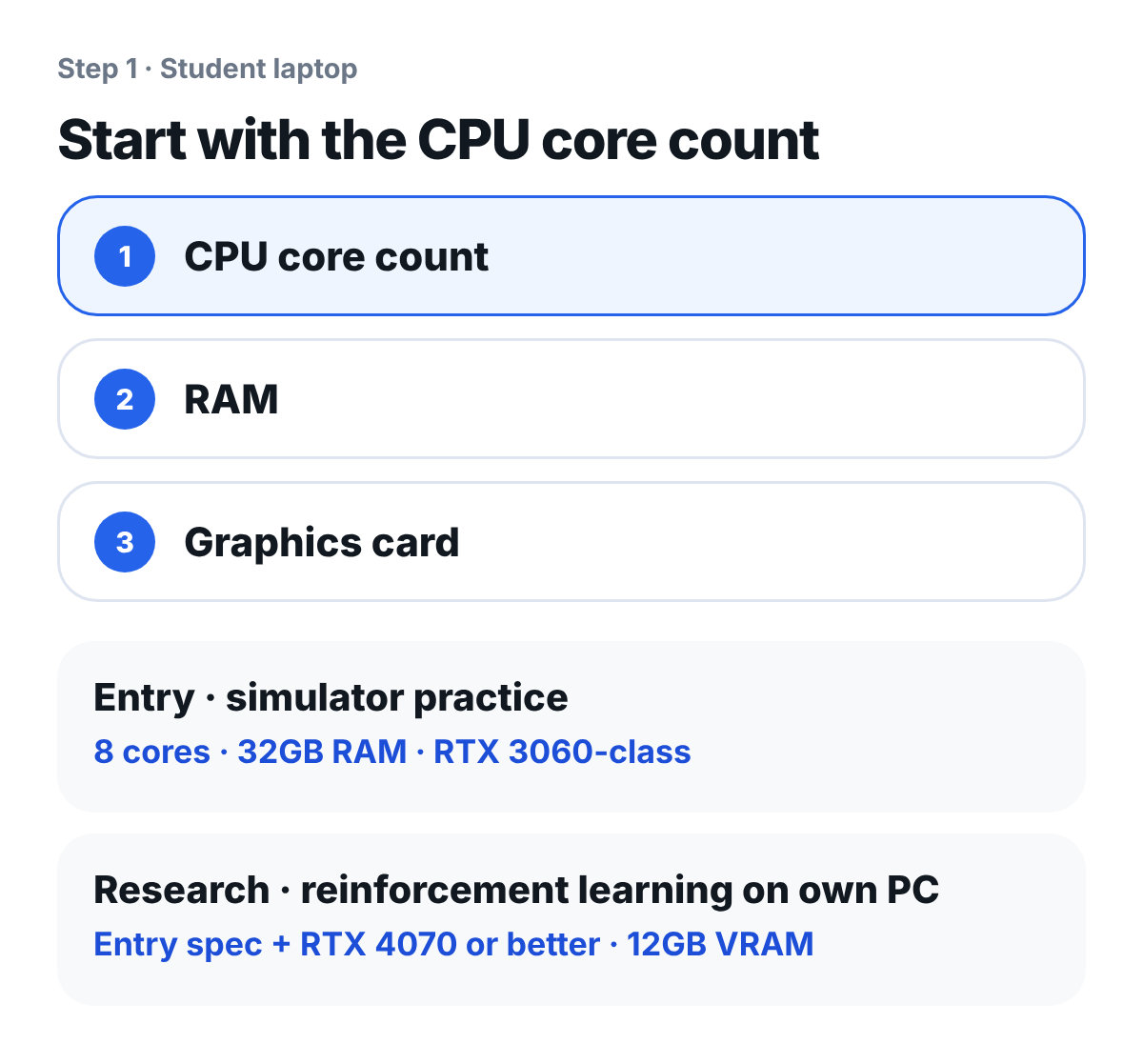
What to look for: The only difference between entry and research is one line, the graphics card. The CPU and RAM standards are the same.
The reason for this order is in the numbers we measured on the scene below. It is a scene in Booster Studio where six robots play 3-on-3 soccer.
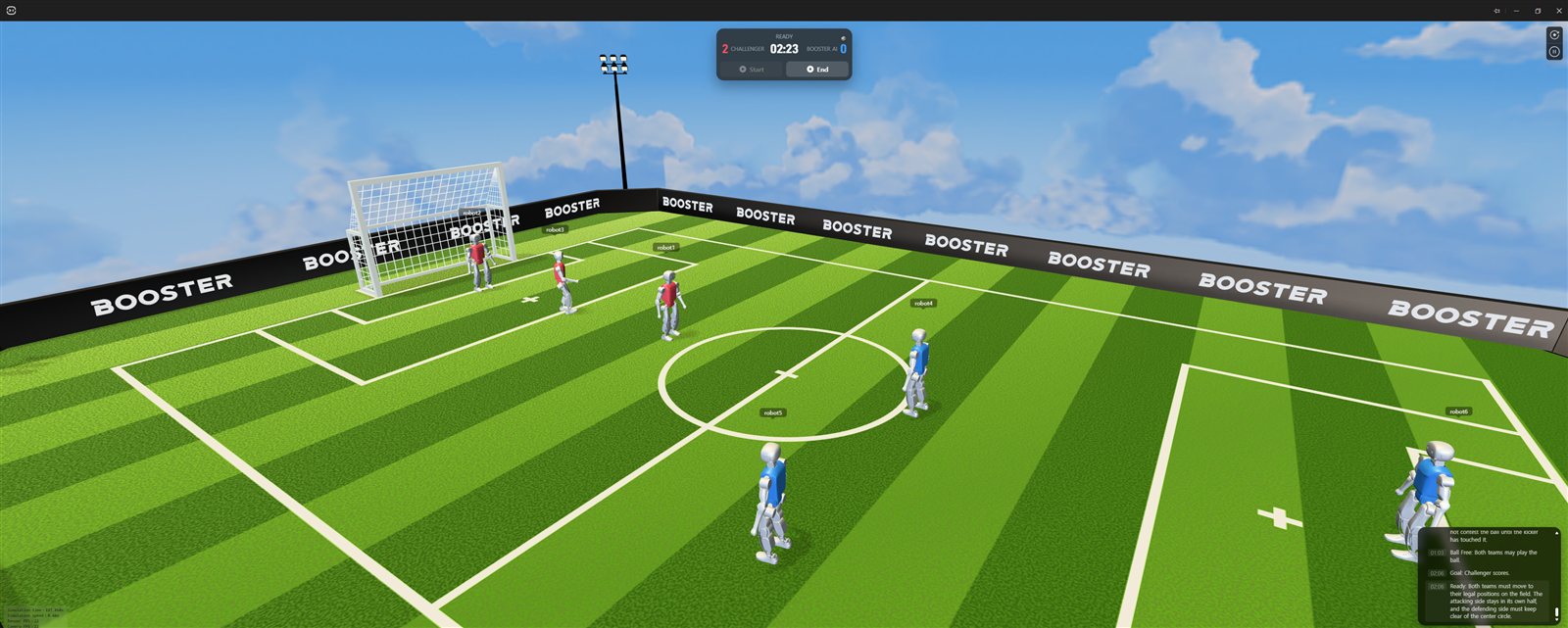
What to look for: The joints and collisions of six robots are calculated together in this scene. The CPU handles that calculation.
We recorded this scene 177 times at 25-second intervals on the same PC.
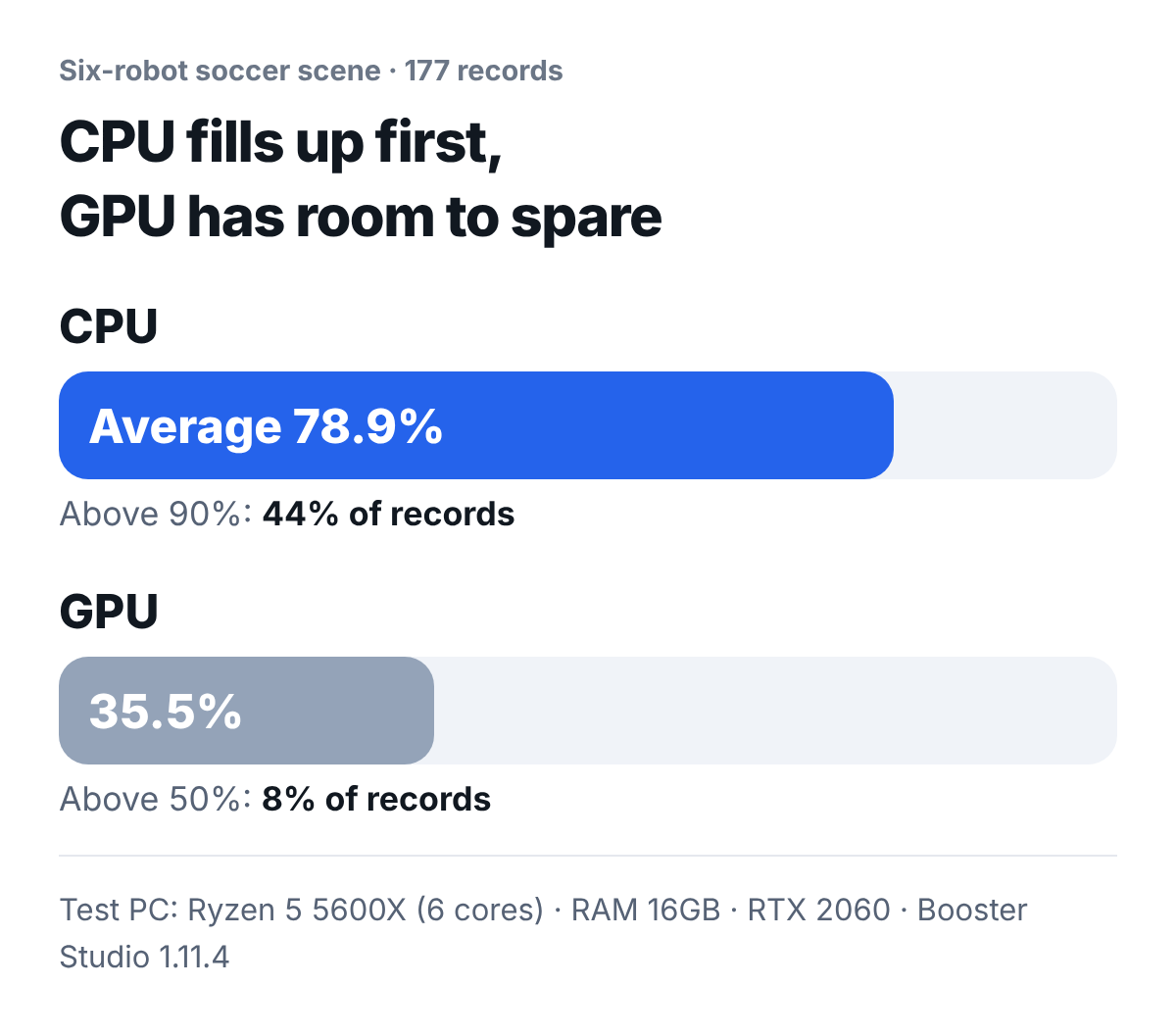
What to look for: The CPU went above 90% in 44% of the records, while the GPU was used above half in only 8%.
The physics engine of Booster Studio is MuJoCo, and MuJoCo does its calculation on the CPU. So upgrading the graphics card does not make the simulation faster. The test PC had 6 cores, and this record is why we set 8 cores as the standard for coursework. If the laptops in a class differ in spec, run this scene first on the laptop with the lowest spec. The detailed measurement records are in 3v3 Simulation Speed Can Differ by Twofold Depending on Conditions.
2. What do you install on student laptops before the term starts?
Docker Desktop, 15GB of free disk space, and one first launch of Booster Studio. Hand these three to students in a notice before the term begins.
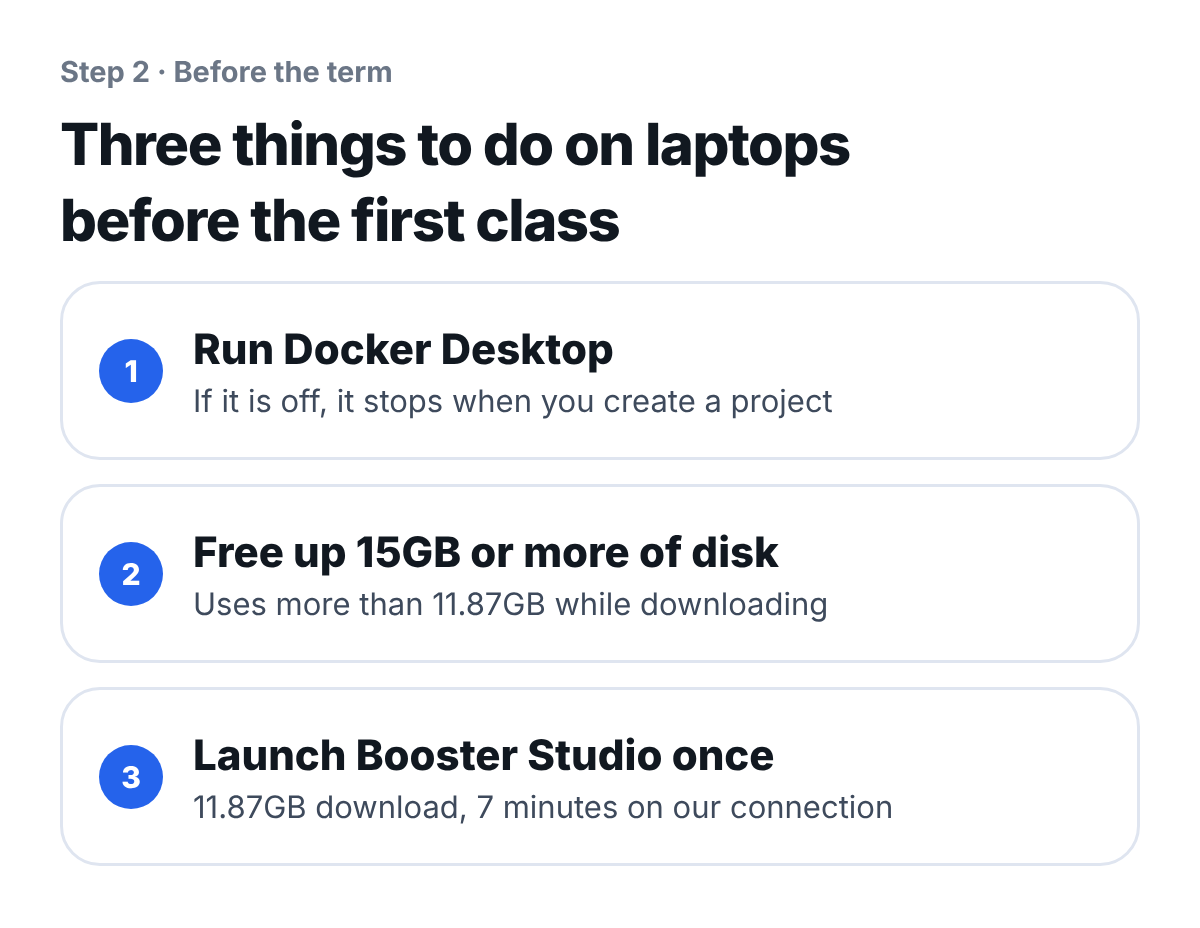
What to look for: If all three are done during class time, the first session ends up being spent on installation.
Booster Studio builds the robot code inside a Docker container and also launches the simulator as a container. If Docker is off, the editor opens but stops the moment you create a project. On the first launch it downloads an 11.87GB simulator image. On our connection it took 7 minutes at an average of 11.4MB/s. If 30 students download at the same time on a shared classroom network, it will not finish in that time. Where installation gets stuck is covered separately in Docker requirements and actual disk usage.
For a course that uses only simulators, start with the free MuJoCo and Webots. Both run on the CPU without a graphics card. The differences between simulators are in Which Robot Simulator Should a Robotics Lab Install?.
3. How do you divide the 12 weeks?
Weeks 1 to 10 run on student laptops without a robot, and the physical robot is used from week 11.
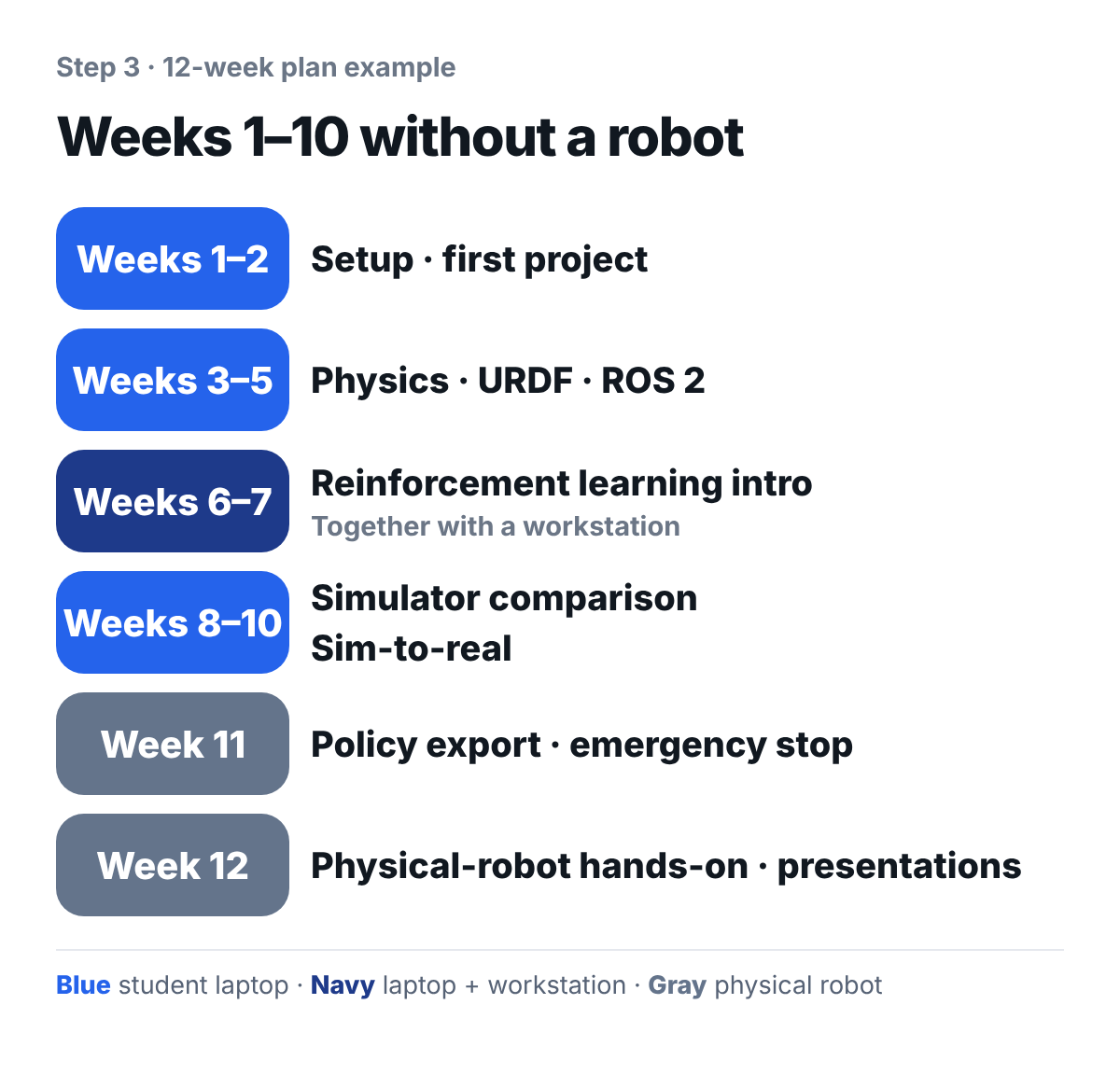
What to look for: The weeks that need a physical robot are the last 2 of the 12.
| Week | Content | Equipment |
|---|---|---|
| 1-2 | Install development tools, first project, control and sensor panels | Student laptop |
| 3-5 | Simulator physics, robot model file (URDF), ROS 2 connection | Student laptop |
| 6-7 | Reinforcement learning overview: walking policy, observation, action, reward | Laptop + workstation |
| 8-10 | Simulator comparison, sim-to-real checklist, research plan | Student laptop |
| 11 | Export the trained policy with the robot SDK, emergency stop | Workstation + robot |
| 12 | Hands-on with the physical robot (rotating by group), presentations | Robot |
This plan uses Booster Studio and reinforcement learning, so it assumes the K1 Education or Pro configuration. K1 Geek provides a remote controller, Python SDK and ROS 2.
The plan is built so that every week leaves students with one result in hand. The week 1 result is a first project that each student creates on their own laptop.
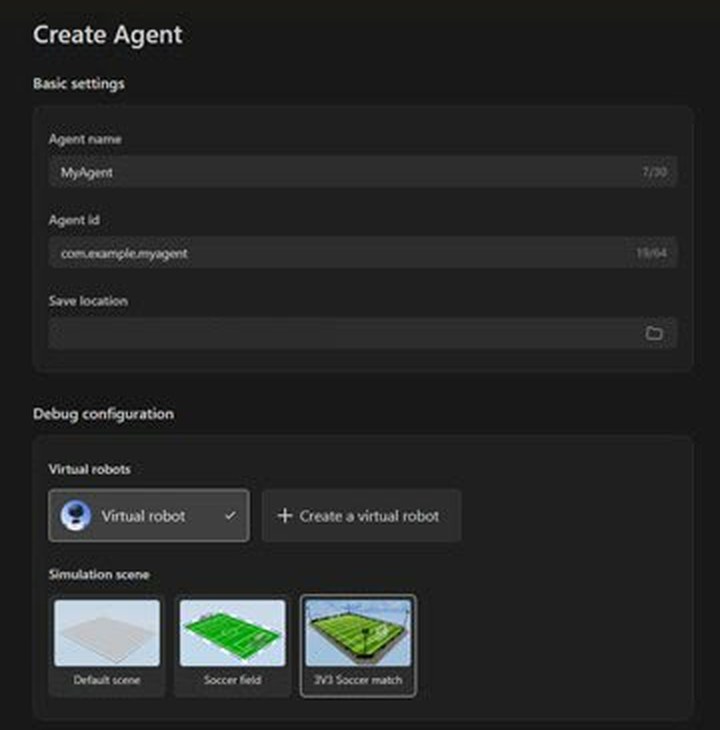
What to look for: Instead of a physical robot, you choose a virtual robot (Virtual robot) to create the project.
In week 2, students move the virtual robot themselves on the same screen.
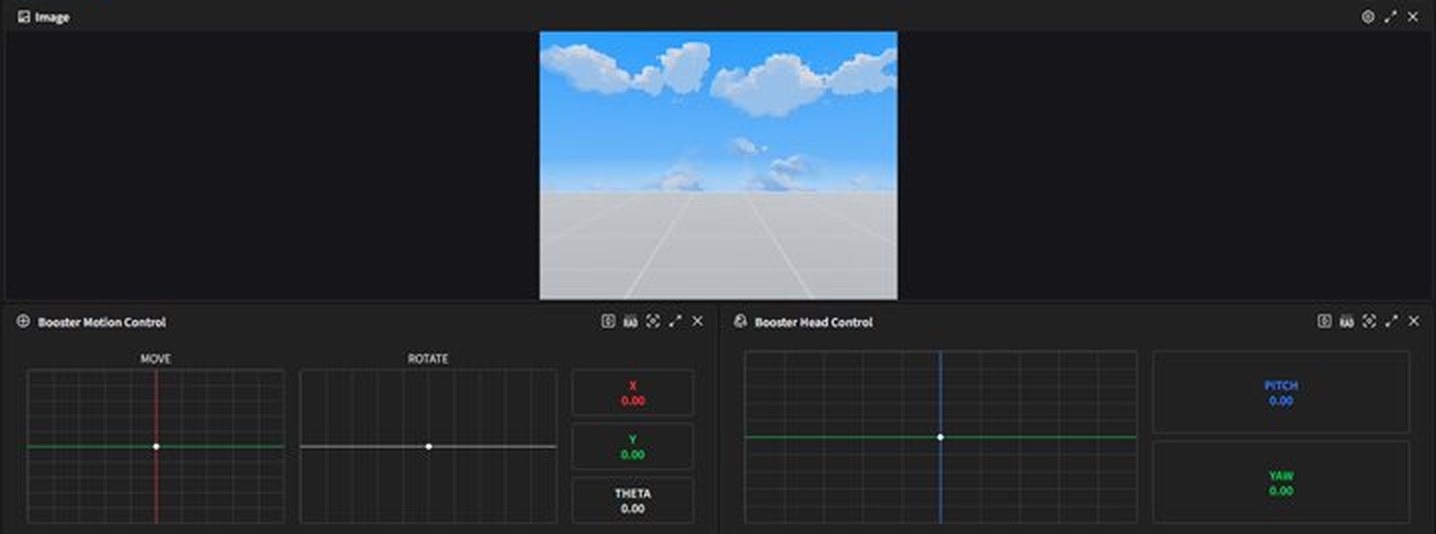
What to look for: When you move the joystick, the robot-view camera feed changes with it.
In the week 9 sim-to-real class, students move a walking policy trained in one simulator to another simulator and find problems before putting it on the physical robot. Here is the result we got with Booster K1.
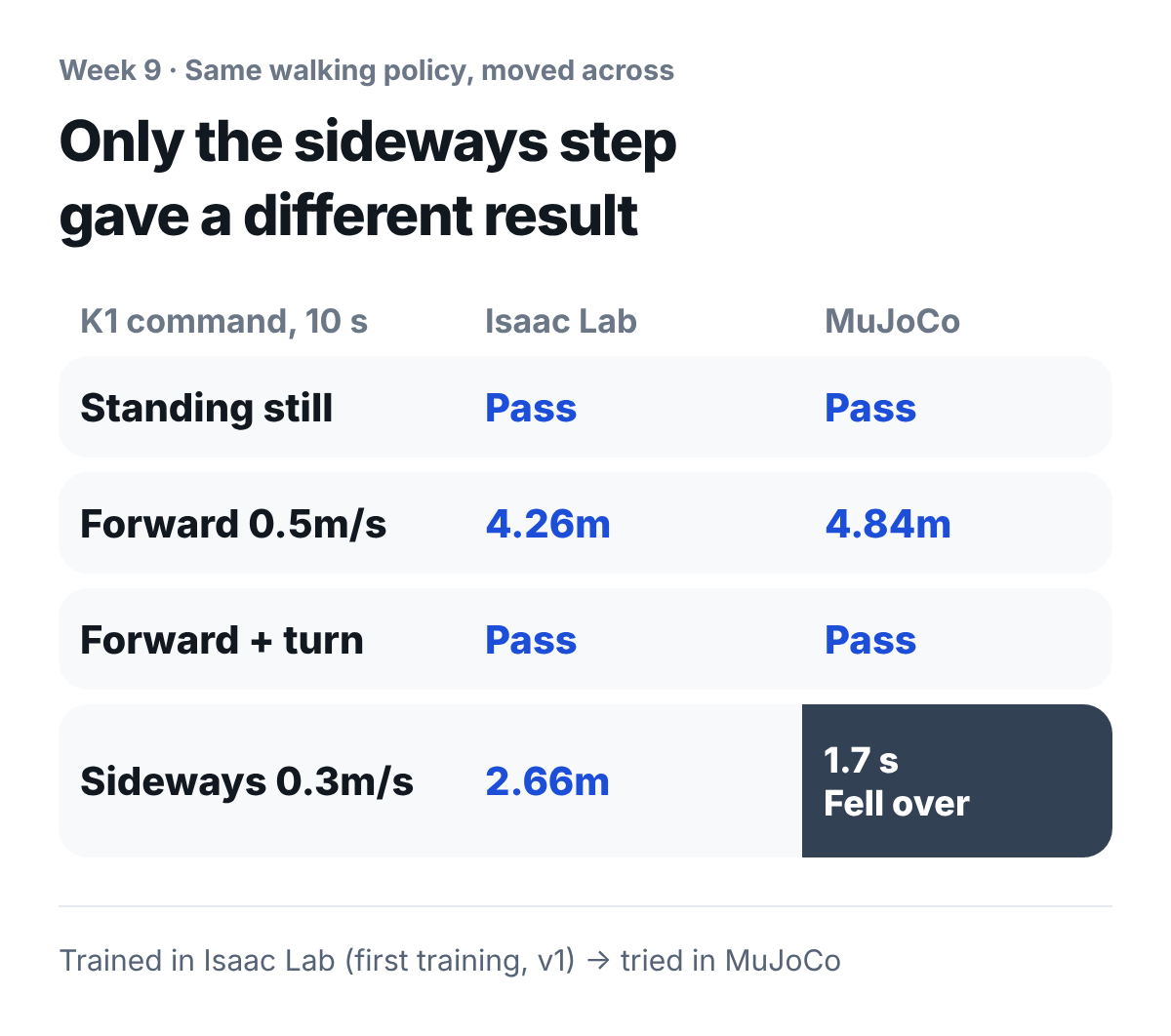
What to look for: All four commands passed where the policy was trained, but only the sideways walk fell in the new simulator. Finding differences like this before putting the policy on the physical robot is the goal of week 9.
How we fixed the sideways walk is in A Walk Learned in Isaac Lab: Does It Also Walk in MuJoCo?. The reinforcement learning weeks 6 to 9 run without ROS 2. In the published deployment code, ROS 2 and the SDK are not used in the training stage. The reasons are covered in When Should You Start Teaching ROS 2?.
4. Is a workstation a must?
You need one if the lab itself runs reinforcement learning with thousands of robots at once. The rest of the practice is done on student laptops.
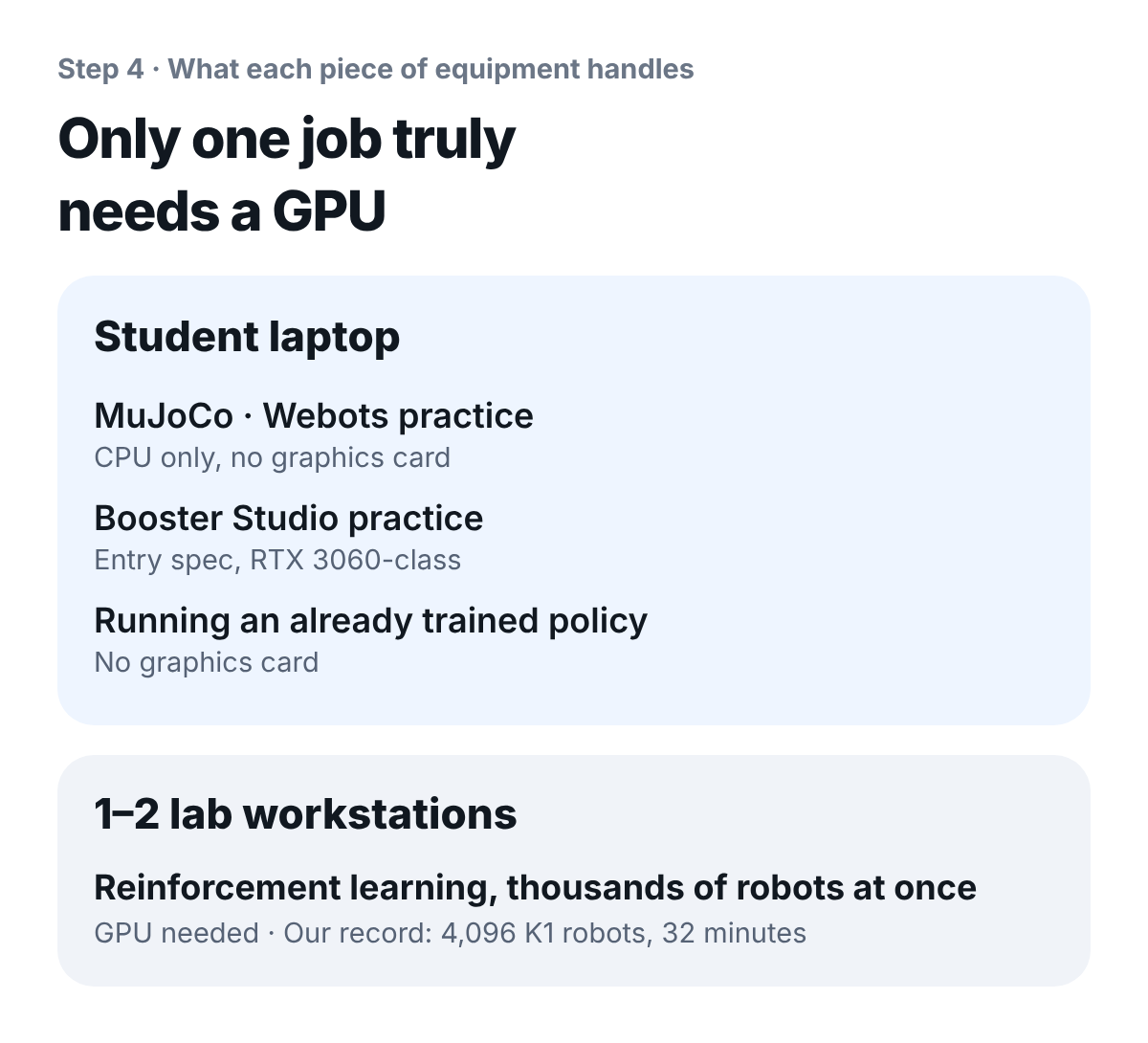
What to look for: The only job that strictly needs a graphics card is the one on the right.
On a workstation, the K1 below is replicated thousands of times and trained at once on one screen.
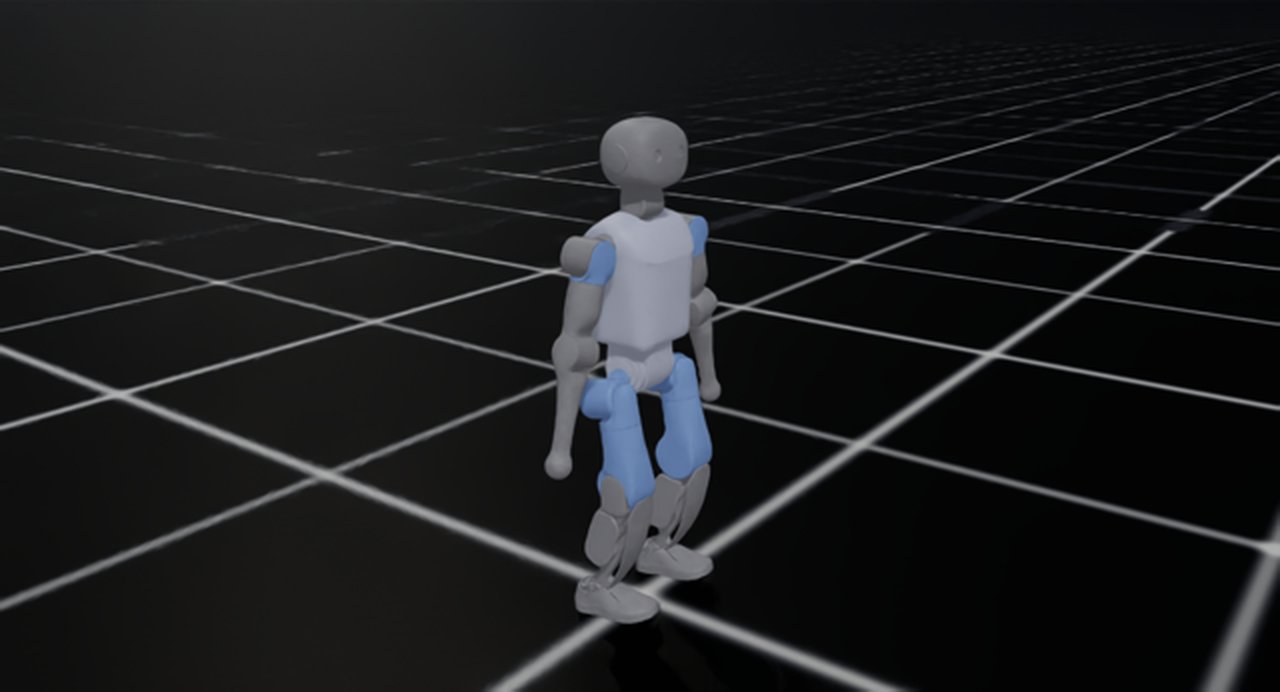
What to look for: This is the K1 inside Isaac Sim. We ran 4,096 of these robots at once and got a walk that does not fall in 32 minutes.
The step of receiving an already trained policy and running it works without a graphics card. Once you decide whether to run the training yourselves in the first semester or only receive and run trained policies, you have also decided whether to have a workstation. The training record is in Booster K1 Walking Training Took 32 Minutes with Isaac Lab.
5. When do you prepare the physical robot and the budget?
The physical robot is used in weeks 11 and 12, and you should get the quote before your institution submits next academic year's budget proposal.
What to look for: If the quote comes later than the budget proposal, it cannot get into the next academic year's budget.
- Physical robots (Booster K1, T2): The institution decides how many to have, based on student count, teaching method and budget. How to think about student count and robot count separately is in How Should You Plan Student Numbers and Equipment for a Humanoid Lab?
- Purchasing: We sell Booster robots directly, and delivery is within 30 days of the order
Frequently asked questions
Can you fill a whole semester without a robot?
In the 12-week example, weeks 1 to 10 run without a robot. In weeks 11 and 12 you move the policy to the physical robot and learn the emergency stop procedure, so put those two weeks in the plan.
What if the student laptops all have different specs?
Run the six-robot soccer scene first on the laptop with the lowest spec. On our 6-core, 16GB RAM PC, with all background apps closed, this scene ran at 0.50 times real-time speed.
Should you teach ROS 2 in the first week?
If the course centers on reinforcement learning, put it later. ROS 2 is not used in the training stage.
Can I see a demo before adopting?
We can show the scene of six robots playing soccer in the simulator right away by screen sharing. An on-site demo with the physical robot is scheduled separately.
Next step
A first-semester plan needs the equipment list and the weekly plan together to get approved. If you need a quote for the plan, tell us your institution's budget proposal deadline. We will send the quote to match that date.
Sources (checked 2026-10-07): Values SV Robotics installed and measured itself: Booster Studio 1.11.4 performance (Ryzen 5 5600X, 16GB RAM, RTX 2060, records at 25-second intervals), Docker requirements and install size, Isaac Lab K1 training (RTX 4060 Ti 16GB), Isaac Lab to MuJoCo 3.13.0 transfer (v1). Prices are not listed because they vary by institution's configuration.