
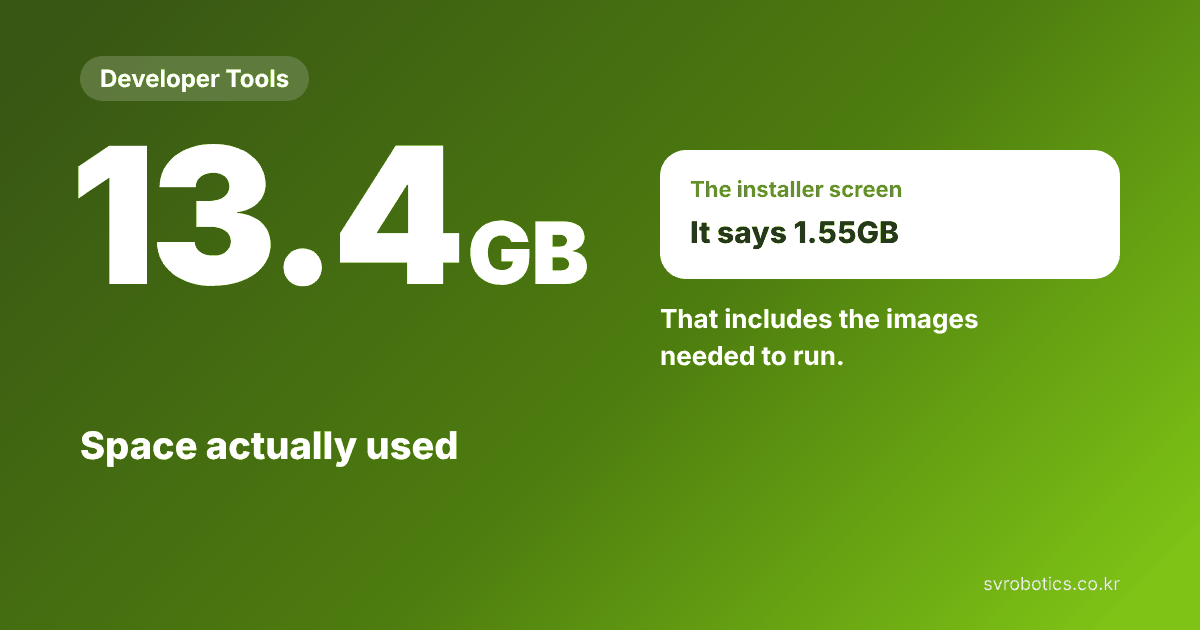
The Installer Says 1.55GB, but It Really Takes 13.4GB
If you plan your disk by the installer's notice, you will run out of space partway through. We measured where the space goes.
At the bottom of the Booster Studio installer, a notice appears.
"At least 1.55GB required."
Do not take that at face value. In practice it takes about 13.4GB.
The number on the installer screen is not wrong. It just counts a narrow range.
Where does the disk space go?
It is spread across three places.
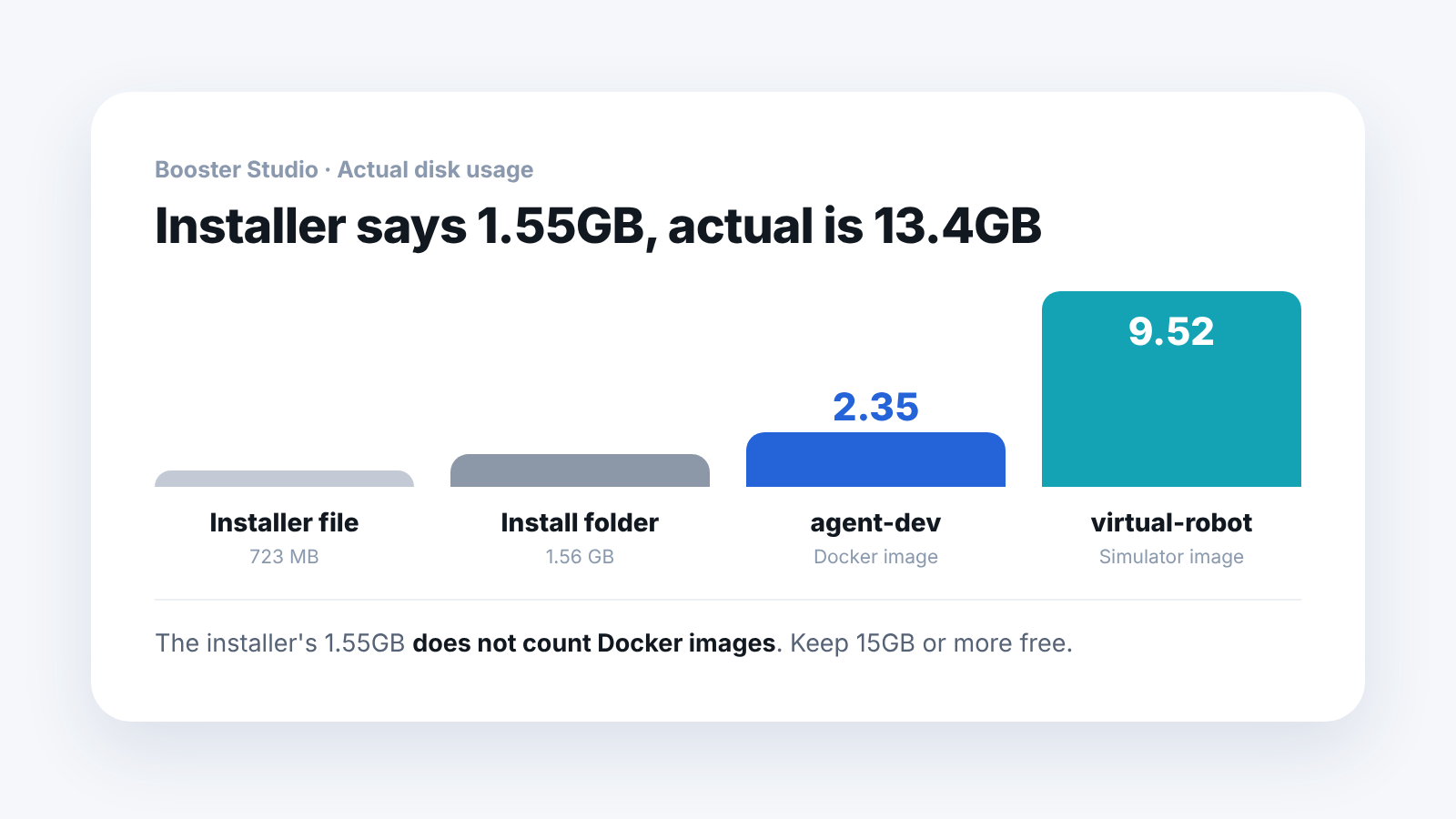
What to see here: Of the three pieces, the Docker images alone account for nine tenths of the total.
- Installer file — 723 MB
- Install folder after installation — 1.56 GB
- Docker images — 11.87 GB ← this is the big one
The 1.55GB on the installer screen counts only up to the second item. The third, which is the largest, is not included.
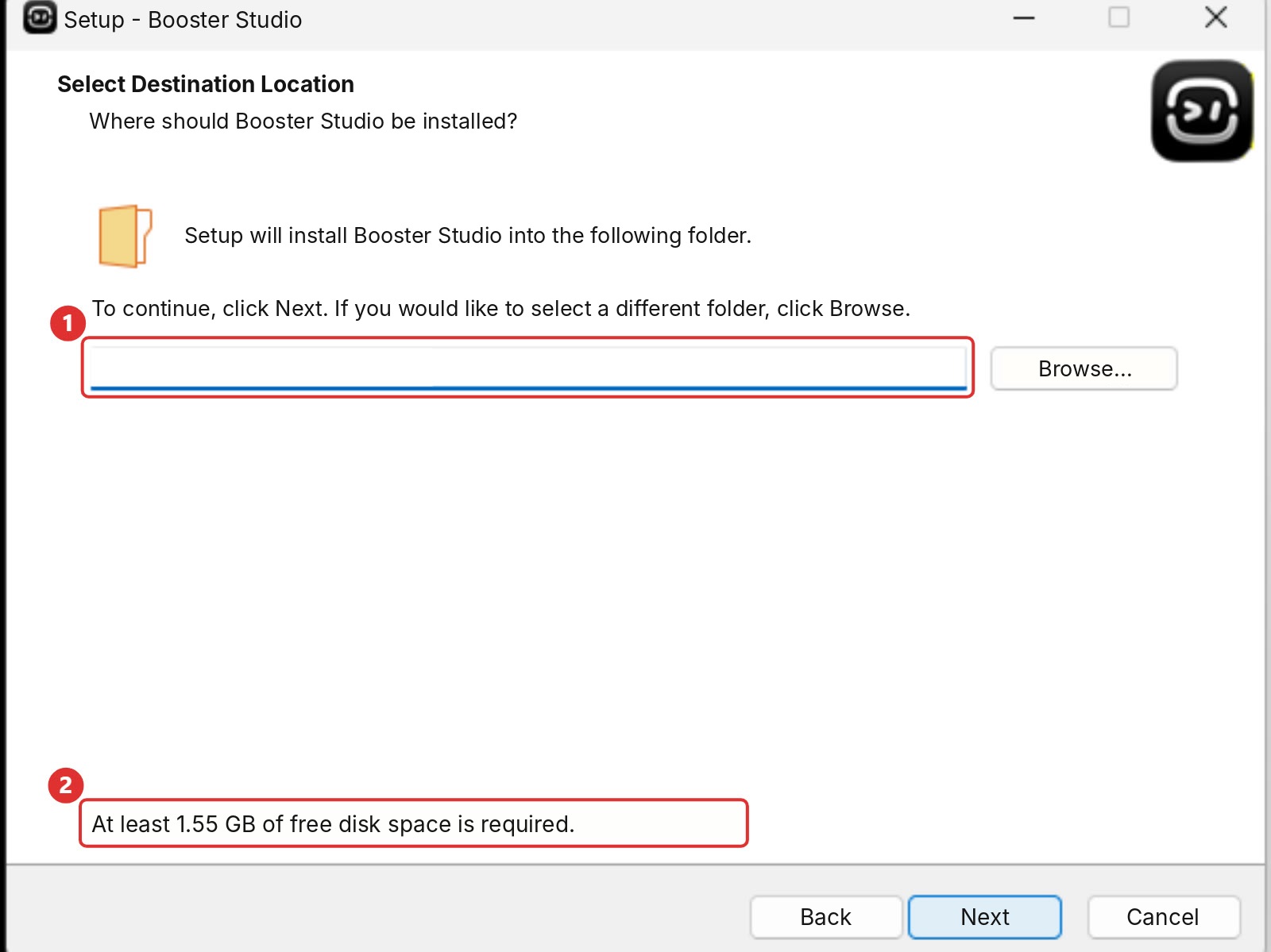
- ① Install path field — blurred because it shows a user folder path. A
Browse(R)...button sits to its right - ② Space requirement notice — "At least 1.55 GB of free disk space is required for this program."
What to see here: This number does not include the Docker images downloaded on first run.
This is also why you should not check the size of the install folder alone. Docker images do not live in a folder. They sit inside the WSL2 virtual disk, so File Explorer does not show them. You need to run docker image ls to see the real size. Do not relax because "the install folder is only 1.56GB."
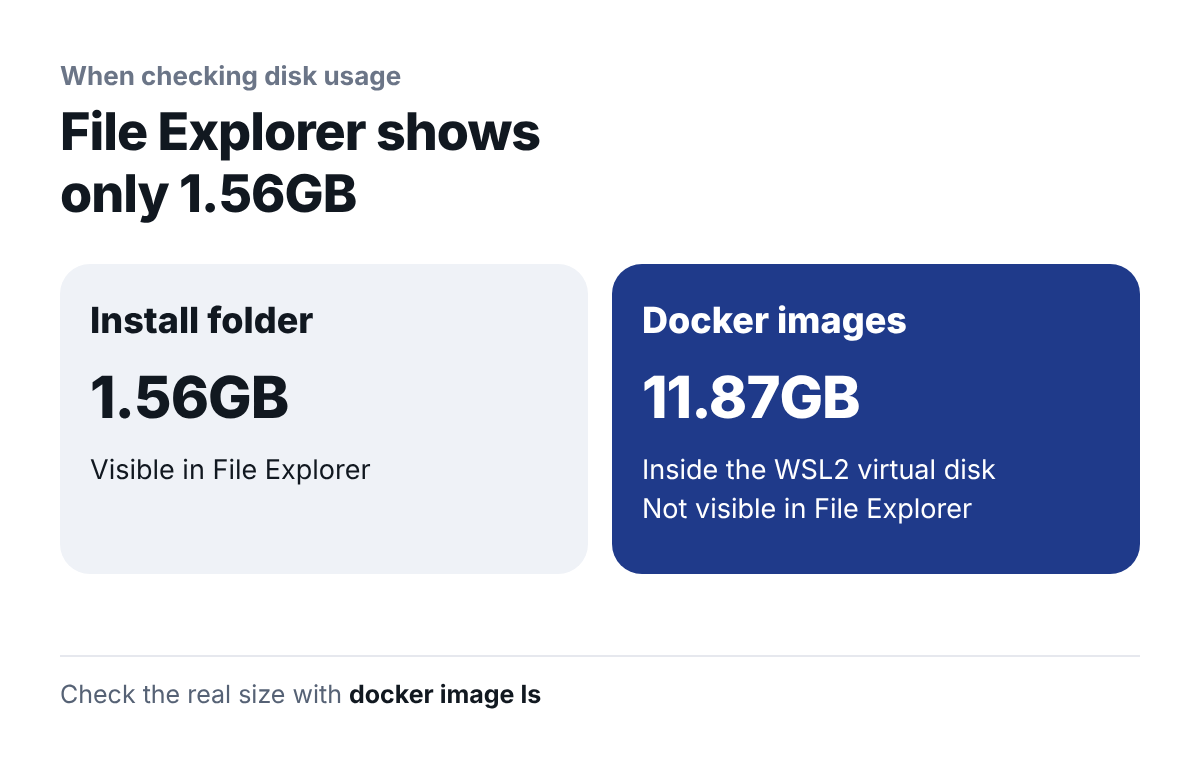
What to see here: The bigger part sits where you cannot see it. One command checks it.
Why are the Docker images so large?
On first run it downloads two of them.
- agent-dev — 2.35 GB
- virtual-robot — 9.52 GB
The second one is the simulator. It holds the robot models, the physics engine and the 3D assets, which is why it is that big.
The two images add up to 11.87GB, and that is the size after decompression, once they are settled on disk. While downloading, the downloaded pieces pile up separately and briefly use more. That is why we recommend 15GB.
They are downloaded only on first run. From the second run on, the cache remains and it starts right away.
So how much should I keep free?
We recommend 15GB or more.
If you free up exactly 13.4GB, you will be cutting it close partway through. Temporary files also pile up during the download.
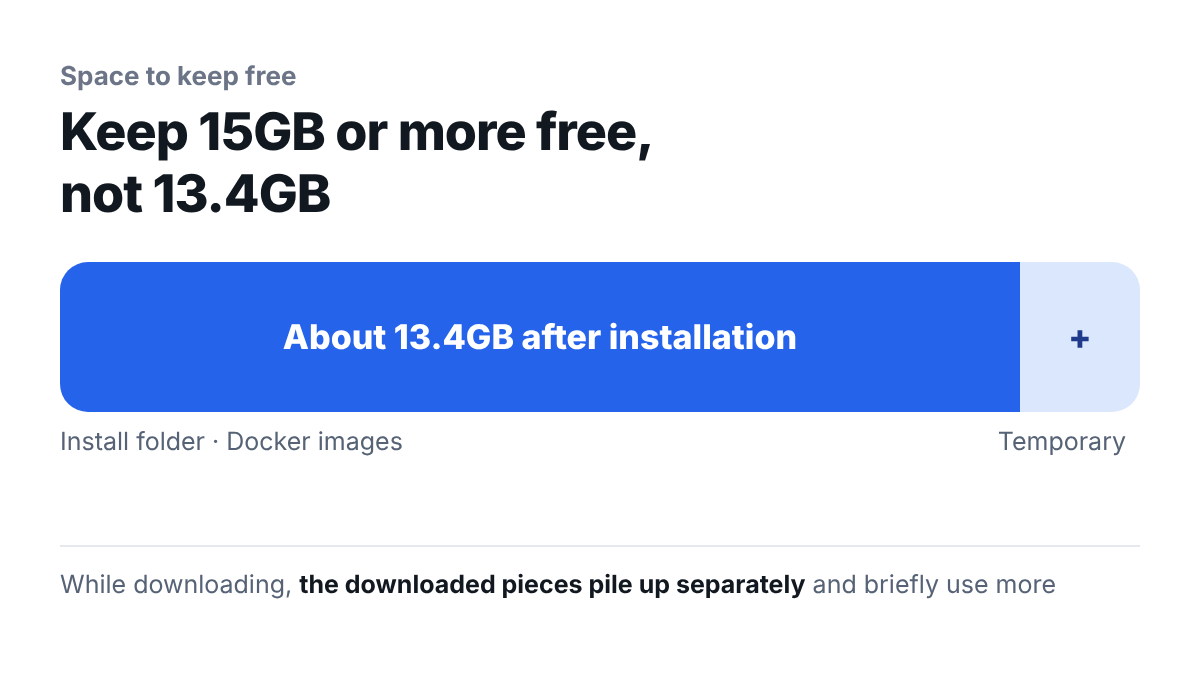
What to see here: The size during the download is larger than the size once it finishes.
If your C drive is tight, move the Docker Desktop image storage location first. Moving it after installation means downloading again.
At the scale of a teaching lab, the numbers grow. If 30 students each install it, simple multiplication gives about 400GB. If you are buying new PCs, look at this number first.
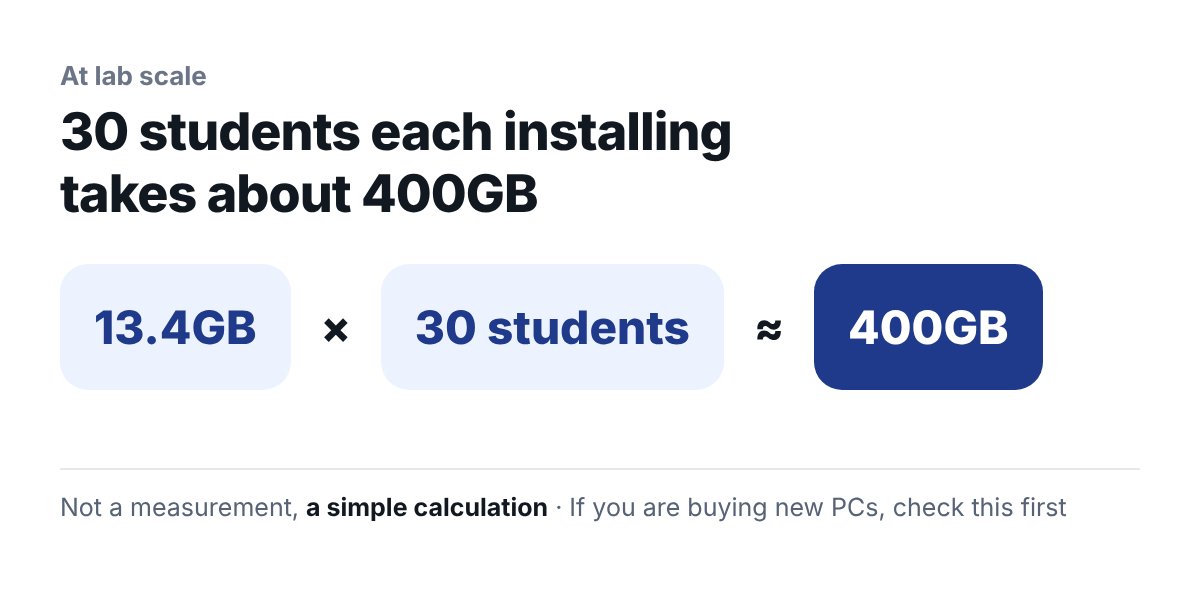
What to see here: It is 13.4GB per PC, but about 400GB for the whole lab.
Which installer will I download?
This is the Windows installer we downloaded.
File name : Booster Studio-Setup-1.11.4-x64.exe
Size      : 758,636,448 bytes (about 723 MB)
SHA-256   : F0E1DB9C79C4C6656329D1CC91065173A9C203F07849D1B656FE613BF63F1D2D
Because this installs an external executable on a company PC, we checked the digital signature first. One line in PowerShell does it.
Get-AuthenticodeSignature "download-path\Booster Studio-Setup-1.11.4-x64.exe" | Format-List StatusYou want to see Valid. If you see NotSigned or HashMismatch instead, do not run it. The file may have been corrupted during download, or it may be a different file. It is a good habit to build.
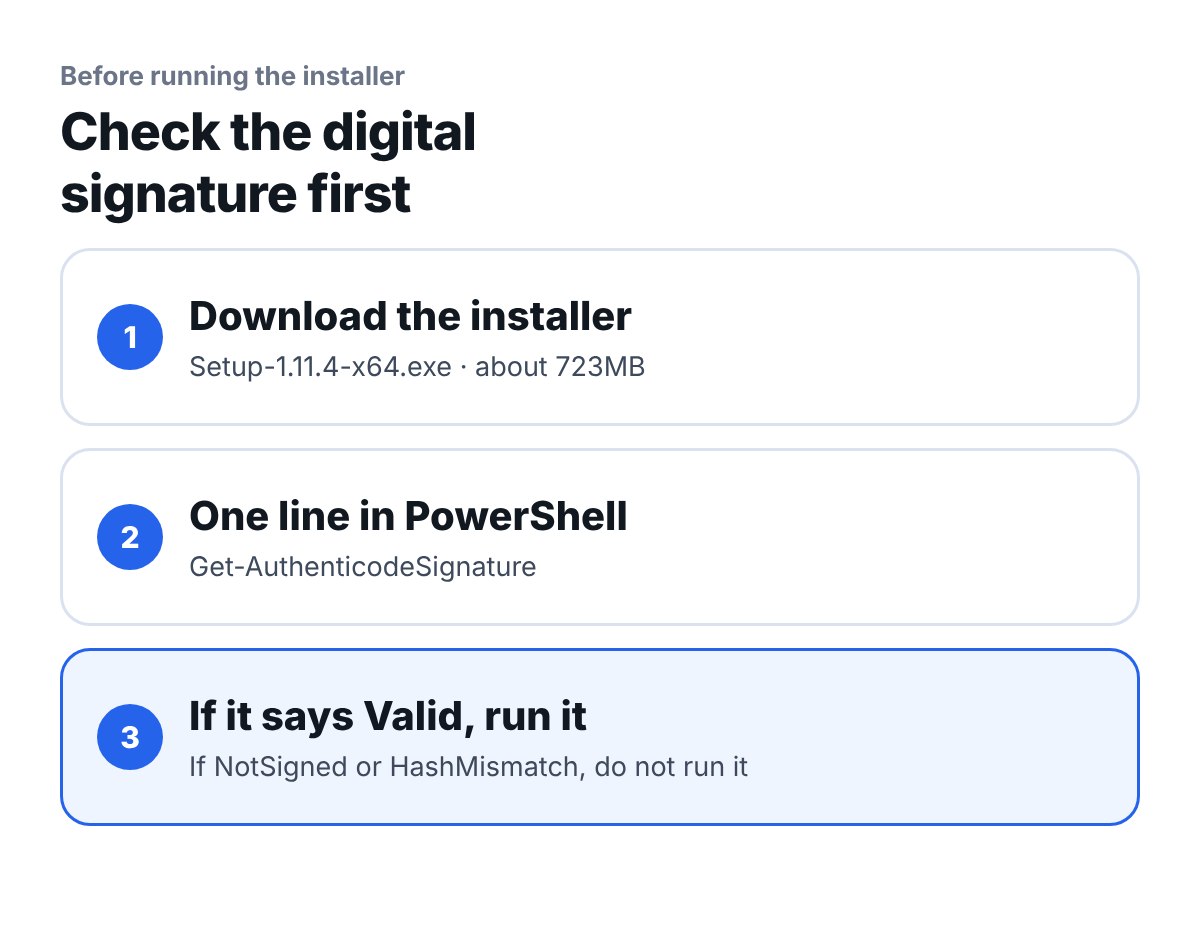
What to see here: The criterion for running it is a single word in the result, Valid.
How long does installation take?
A large size also means it takes a while.
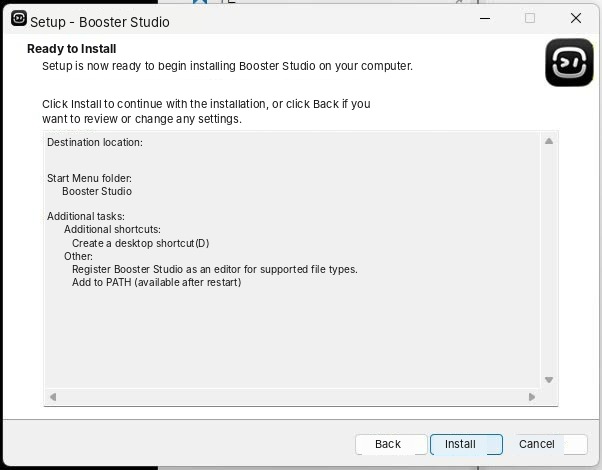
What to see here: This is the last screen before you press Install. Pressing it starts the file copy.
The installation itself took 3 minutes 17 seconds to copy the files. That is because 28,032 files are unpacked. When we ran other work at the same time, it took close to 7 minutes.
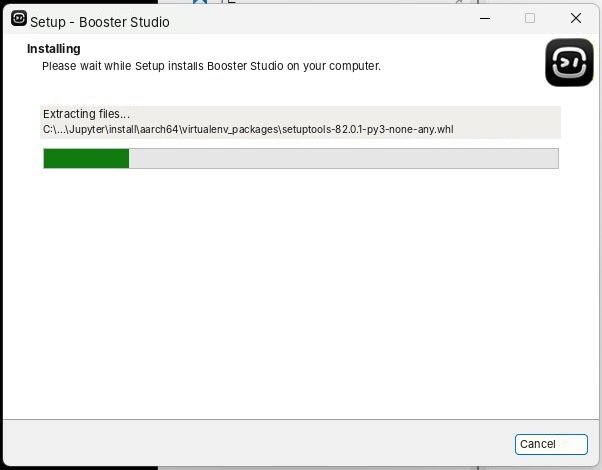
What to see here: The scrolling paths even include Jupyter virtual environment packages. That is why there are so many files.
The first run takes about 7 minutes. That is the time to download 12GB. We were worried because it pulls from an overseas registry, but the average was 11.4MB/s. At best, the 2.35GB image downloaded in 75 seconds. This is for our connection, though. On a shared classroom network with students connecting at the same time, it takes much longer.
By step, it went like this.
- Downloading the agent-dev image — about 105 seconds
- Agent build, signing and packaging — about 7 seconds
- Downloading the virtual-robot image — about 5 minutes
- Preparing the container and loading resources — about 1 minute
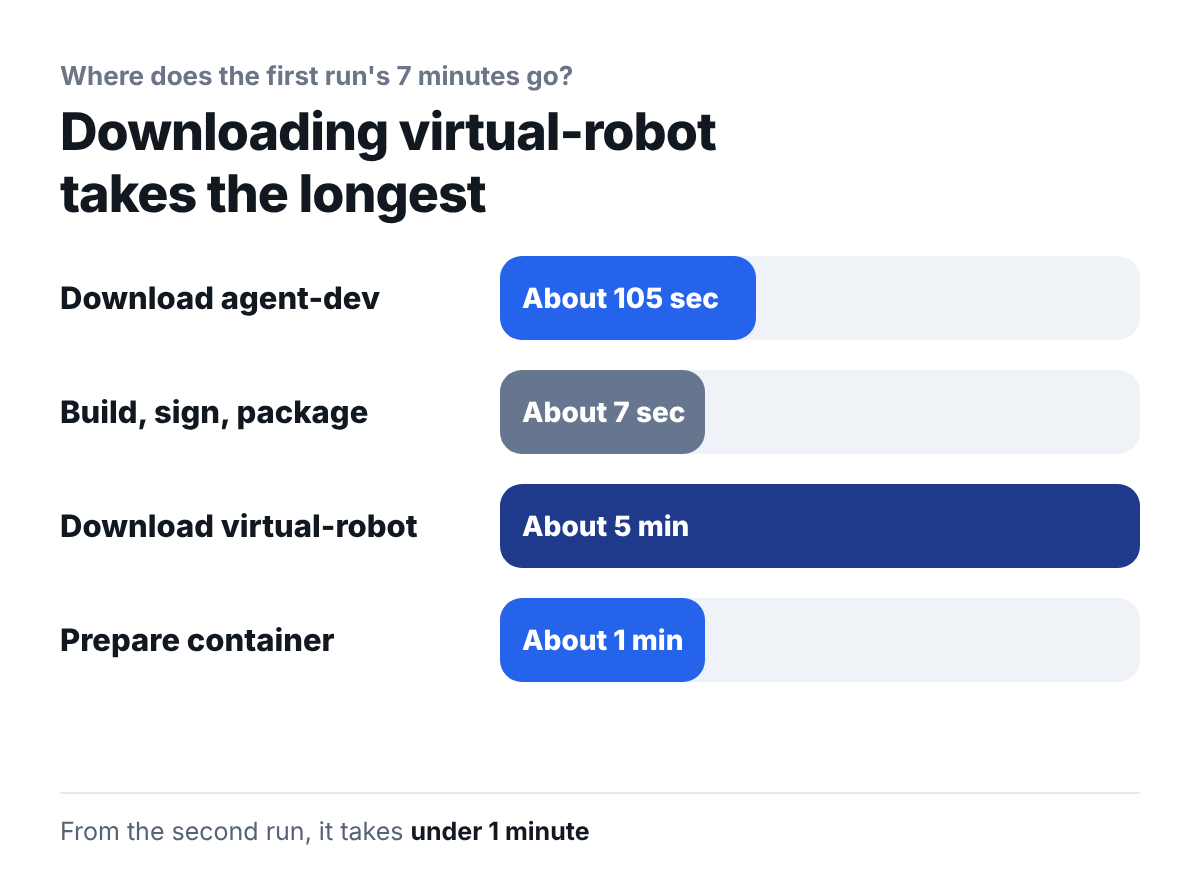
What to see here: Most of the 7 minutes is the time spent downloading the virtual-robot image.
From the second run on, it starts in under a minute. You only need to go do something else the first time.
For a teaching lab, we recommend running it once before the first class. If 30 students download 12GB each at the same time, the classroom network will not hold. It is faster to set up one PC with the images already downloaded and match the rest to it.
Frequently asked questions
Can I delete the Docker images later?
If you delete them, they are downloaded again on the next run. That means downloading 12GB again, so it is better to leave them.
Does every student PC need 13.4GB?
If each student installs Booster Studio, yes. If the lab is mostly about simulators, you could also use MuJoCo alone.
Does it have to be an SSD?
No. The first run just takes longer to unpack the 12GB.
How did you measure these numbers?
We checked folder sizes before and after installation and the output of docker image ls ourselves.
Next steps
These posts are good to read after this one.
- Install Docker Before You Install Booster Studio — Lists the conditions to prepare before first run, along with disk space.
- Do Not Run Booster Studio as Administrator — Covers the installation steps worth noticing and why the install path is a user folder.
- How Do You Create Your First Project in Booster Studio? — If the installation is done, this leads on to creating a project.
The numbers here were measured by installing Booster Studio 1.11.4 on Windows 11. The figure of about 400GB for 30 students is a calculation that multiplies the single-install size, and download times vary with connection speed.