
Install Docker Before You Install Booster Studio
This requirement is not on the official download page. We only hit it after finishing the installation and even creating a project.
If you are about to install Booster Studio, there is just one thing to say first.
Install Docker Desktop first. And keep it running.
This is not written on the official download page. We only got stuck after finishing the installation and even creating a project.
Why is Docker Desktop needed?
Booster Studio builds robot code inside a ROS 2 container. It also starts the simulator as a container.
So without Docker, nothing runs. The editor opens, but it stops the moment you create a project.
Using containers also means the place where the robot code runs is always Linux. Even if you use Windows, the actual build happens inside the container.
There is an upside too. The problems caused by different ROS 2 versions on each student PC disappear. The container tag of the image we received was humble, and whichever PC you open it on, you get the same ROS 2 Humble environment.
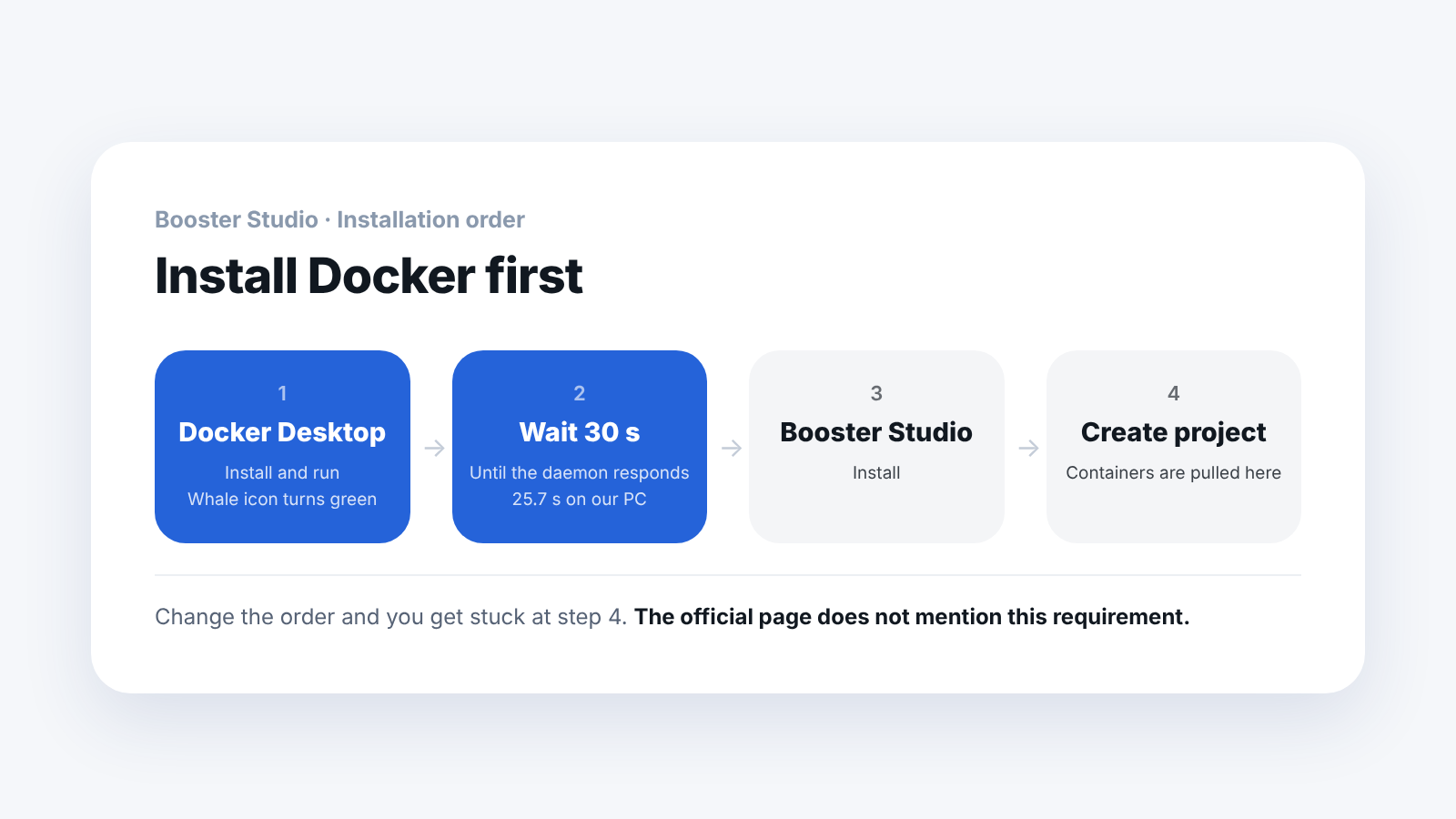
What to see here: Docker Desktop comes before Booster Studio. Do not just install it. Run it too.
What error appears when Docker is off?
[error] [activate] Failed to pull image: Docker daemon connection error
[error] [pipeline] failed: Failed to pull image: Docker daemon connection error
[error] [post-open] pipeline failed: Docker daemon connection error
The three lines look slightly different, but the cause is one. The same failure is simply reported again at each stage, in the order activate, pipeline, post-open. That is why the same line keeps repeating. The first time you see it, it is hard to tell what is wrong.
In the robot chip area at the top of the window, a small Docker not running is shown. We only noticed it much later.

What to see here: Look at this spot before digging through the error log. The cause is written in one line.
The Run button cannot be clicked either. Hovering over it shows a note that there is no robot connection.

What to see here: It says "no connection," but this is not a robot settings problem. The same note appears when Docker is off.
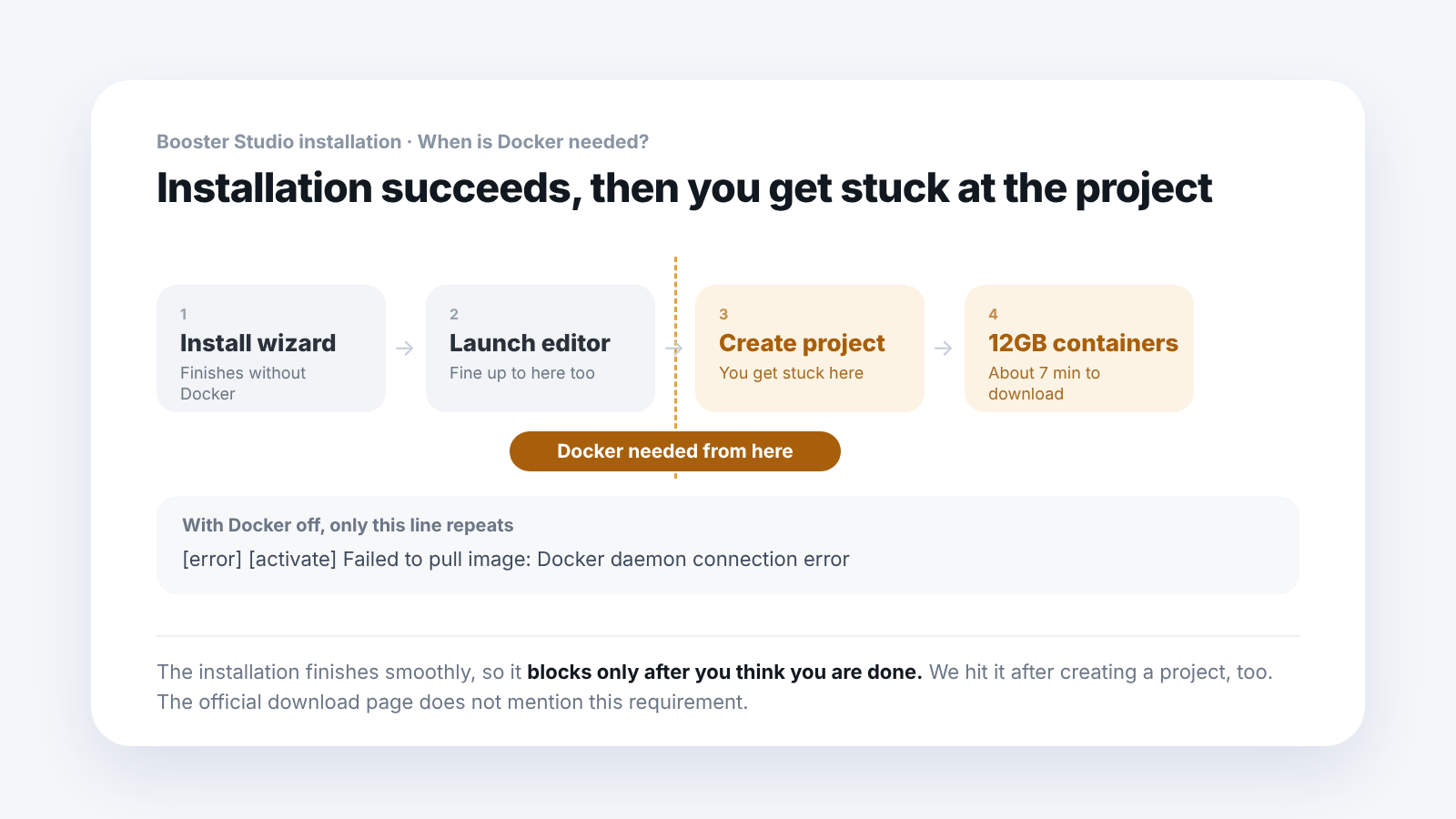
What to see here: The first two steps pass without Docker, so the place where you get stuck shows up late.
Can I run it right after starting Docker?
You can get stuck once more here.
Even after you start Docker Desktop, it does not work right away. On our PC it took 25.7 seconds for the daemon to actually respond.
Wait until the whale icon in the taskbar turns green and says Running. Do not panic if it does not work the moment you start it.
If you prefer the terminal, one line, docker info, also confirms it. If the daemon is not up yet it gives an error, and once it is up it prints a long list of settings.
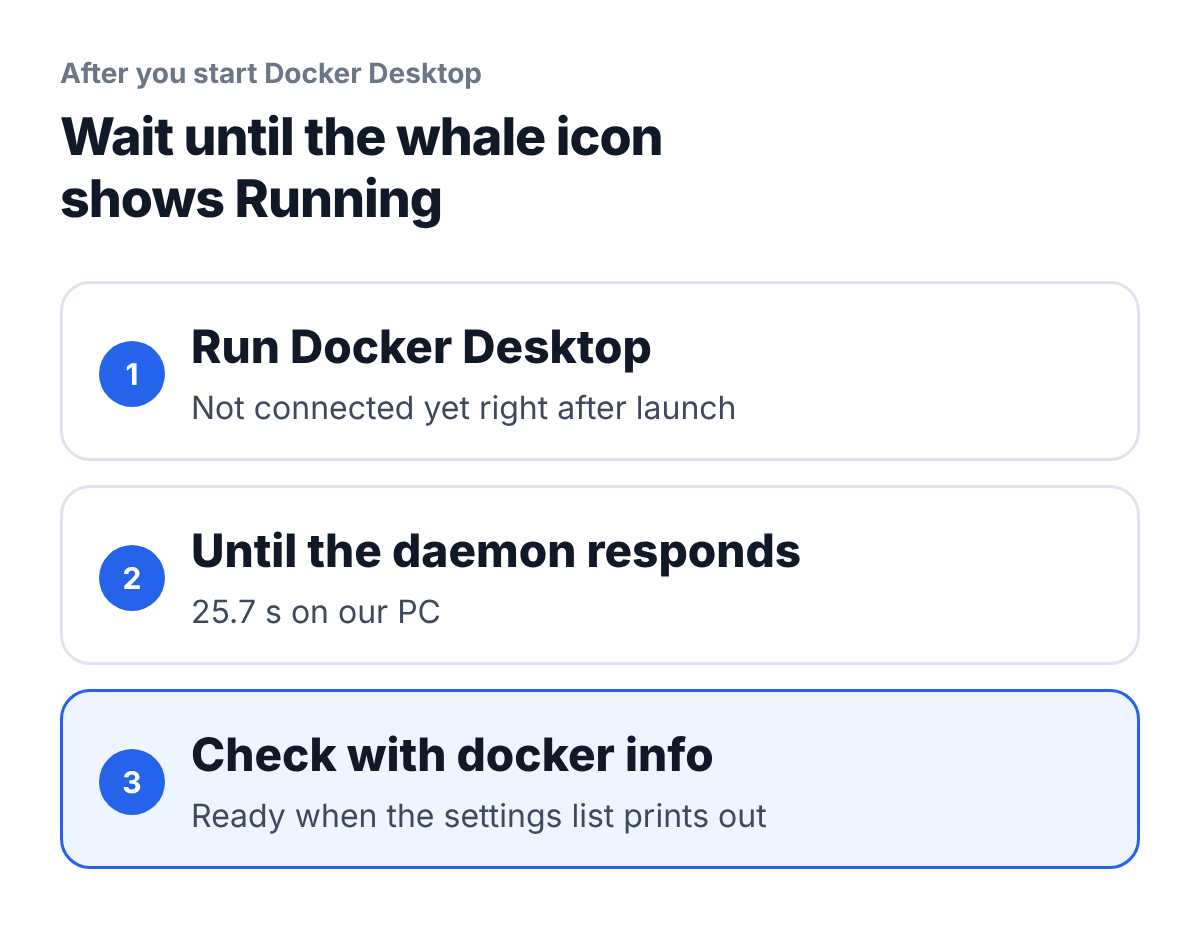
What to see here: There is a gap of nearly 30 seconds between starting it and being able to use it.
For a teaching lab, announcing just this one item in advance makes the first class much smoother. This is where most students get stuck and raise their hands.
What should I check before starting?
- OS — Windows 10 / 11. macOS and Ubuntu are also supported
- Docker Desktop — required, and it must be running
- Free disk space — 15GB or more
- RAM — 16GB minimum, 32GB recommended
- Internet — about 12GB is downloaded on first run
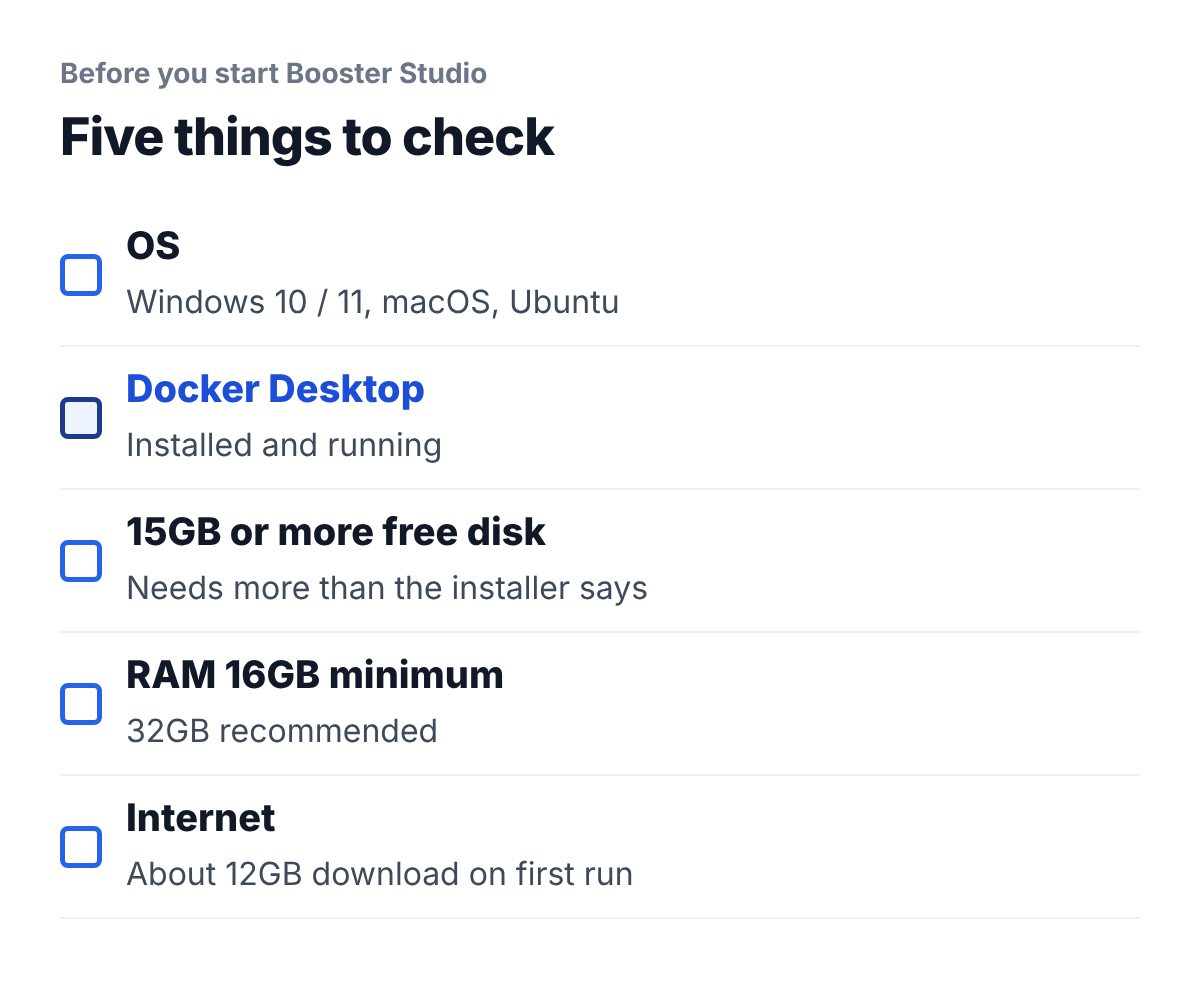
What to see here: Of the five, the one most often missed on the first day of class is "Docker running."
There is a reason to recommend 32GB of RAM. On Windows, Docker Desktop runs on top of WSL2, and on our PC WSL2 alone held 3 to 5GB. On a 16GB PC, that much less is left for the simulator.
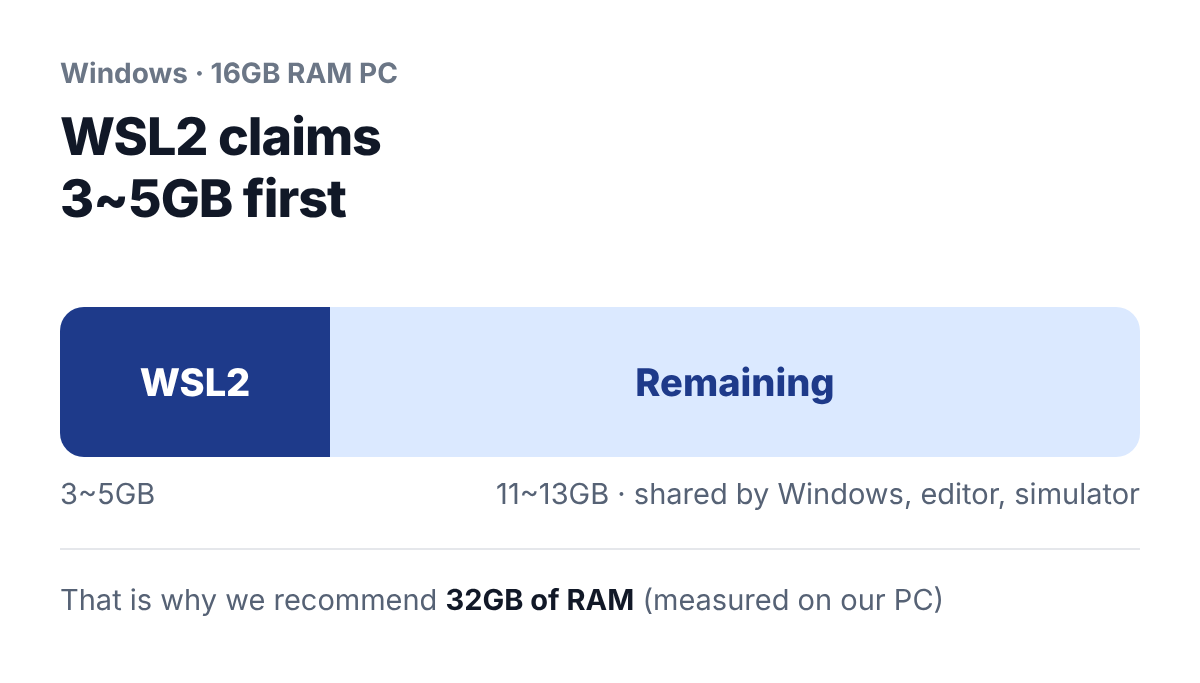
What to see here: About a quarter of the 16GB is gone from the start. That is why we recommend 32GB.
Allow plenty of disk space. It takes far more than the installer's notice says. We cover that in a separate post.
When does it pull the containers?
Not at installation, but the first time you run a project.
That is why the installation finishes without trouble. The editor opens too. You get stuck afterwards. This is why we were caught late.
On first run it pulls two images.
- agent-dev — 2.35 GB, about 105 seconds
- virtual-robot — 9.52 GB, about 5 minutes
Together it took about 12GB and 7 minutes. We were worried because it pulls from an overseas registry, but the average was 11.4 MB/s.
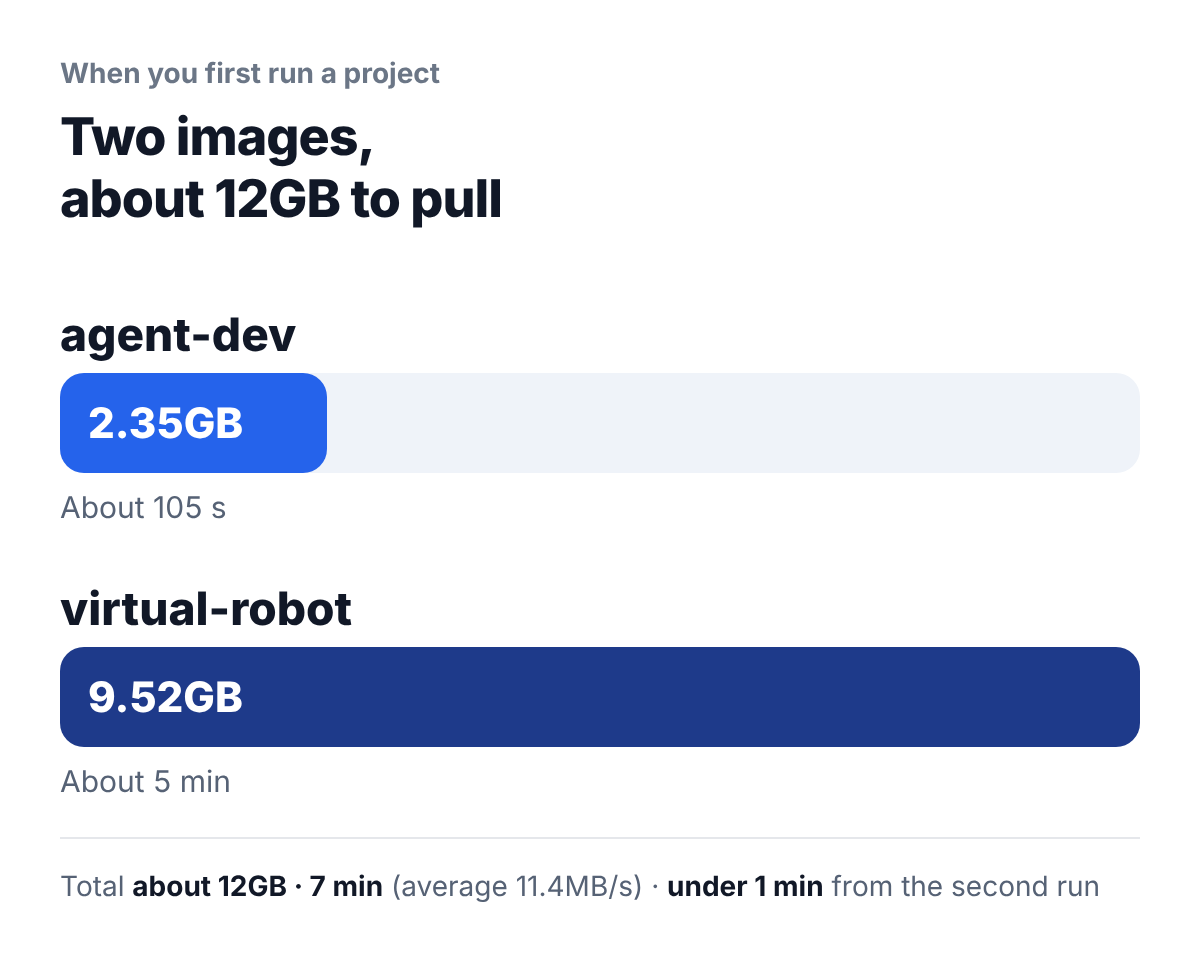
What to see here: Most of the time goes to virtual-robot alone. Running it once before class makes the first session faster.
It does not pull from Docker Hub but from a container registry the manufacturer runs itself. If you are on an internal network that only allows certain domains out, check this in advance.
From the second run on, the cache remains and it starts in under a minute. You only wait the first time.
Once the download is done and the agent starts normally, the output panel keeps a record like the one below.
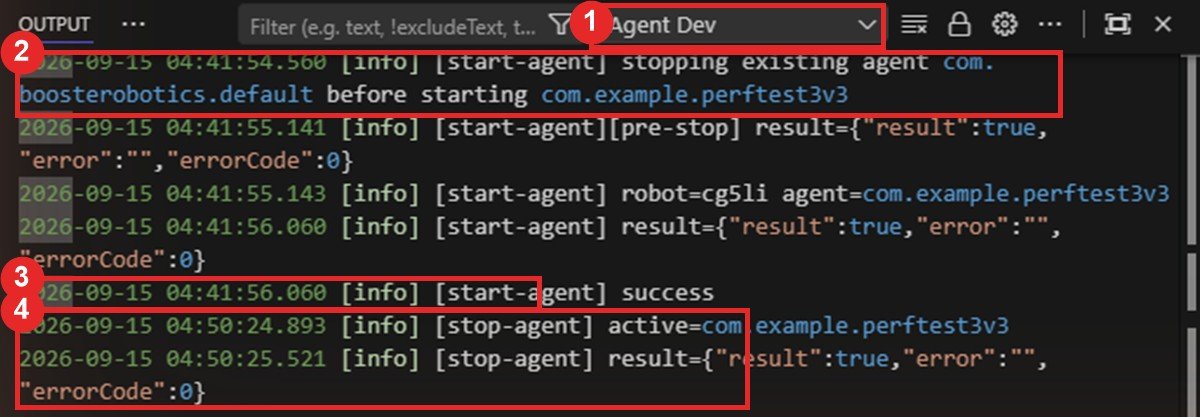
What to see here: If you see success after start-agent, both Docker and the container came up correctly.
Frequently asked questions
Can I install it without Docker just to try?
The installation works. The editor opens too. But it stops the moment you create a project, and you can do nothing.
Can I use something other than Docker Desktop?
We confirmed it only with Docker Desktop. We did not verify other runtimes.
I cannot install Docker on my company PC.
Then it is hard to use Booster Studio. It is a tool that assumes containers.
What if the daemon takes longer than 25 seconds?
It depends on the PC. The guide is to wait until the whale icon turns green.
Next steps
These posts are good to read after this one.
- The Installer Says 1.55GB, but It Really Takes 13.4GB — We measured the real disk space including the Docker images, and the installation and first-run times.
- Do Not Run Booster Studio as Administrator — Covers the installation steps worth noticing and the run permission.
- How Do You Create Your First Project in Booster Studio? — If Docker is running, this leads on to creating a project.
This post is based on installing and checking it ourselves with Windows 11, Booster Studio 1.11.4 and Docker Desktop. The 25.7 seconds for the daemon to respond may vary with PC specifications.