
Before You Start Robot Reinforcement Learning — Where to Get Isaac Sim, Isaac Lab and MuJoCo, and the Install Order
To have a robot learn to walk on its own, you first need to install the simulators. This one article covers what Omniverse, Isaac Sim, Isaac Lab and MuJoCo each are, the official download addresses and the versions we used, the official specs and our PC's specs, the install steps and how to check them, and where we actually got stuck.
To have a robot learn to walk on its own, you first have to install a world inside the computer for the robot to practice in. We used four things for Booster K1 walking reinforcement learning: the base platform Omniverse, Isaac Sim running on top of it, Isaac Lab running the training on top of that, and MuJoCo, which re-checks the training result in a different physics engine.
This article is the installation guide to read before starting the series "Physical AI, Hands On." We wrote down the official addresses, the versions we actually used, and the places we got stuck, so that a teacher, a university lab or a student can finish the installation from this article alone.
We re-checked the official page addresses and specs on 2026-10-03. Official documents can change, so please check them once more before you install.
What are the four things?
| Name | What it is | What it does in this series |
|---|---|---|
| NVIDIA Omniverse | NVIDIA's platform for building 3D virtual worlds and simulations | Isaac Sim is built on it. You do not install it separately |
| Isaac Sim | A simulator that puts a robot into a virtual world and computes physics and sensors | Stands up and moves the virtual K1 |
| Isaac Lab | A framework that runs reinforcement learning on top of Isaac Sim | Practices thousands of virtual K1s at the same time |
| MuJoCo | An open physics engine with fast contact computation | Moves the trained gait to a different engine and checks it again |
We use two simulators to tell whether a gait is tuned only to the quirks of one simulator. The differences between simulator types are in Which Robot Simulator Should You Install in a Teaching Lab?, and the result of actually moving a gait is in Does a Gait Learned in Isaac Lab Also Walk in MuJoCo?.
Where do I download them?
We list official addresses only. Files from other places may differ in version and contents.
| Tool | Version we used | Official address |
|---|---|---|
| Isaac Sim | 5.1.0 (zip for Windows) | Download · Windows install |
| Isaac Lab | 2.3.2 | Release · Install docs |
| MuJoCo | 3.13.0 (museum test environment) | Official site · Releases · Documentation |
| Omniverse | (not installed separately) | Omniverse official page |
- Following along and installing fresh are different. Following along = Isaac Sim 5.1.0 + Isaac Lab 2.3.2 — we installed this combination and confirmed K1 walking training with it. Installing fresh = the latest combination the official documents guide you to — we have not tested that, so before installing, check the supported release and the compatible Isaac Lab release in the official Isaac Sim documentation.
- The official documentation marks Isaac Sim 5.1.0 as "Unsupported release" (no longer supported). You can see this at the top of the 5.1.0 download page.
- The official documentation says the older Omniverse Launcher ends support on October 1, 2025. Today Isaac Sim is downloaded as a zip file and unpacked (or installed as a Python package). This article explains the zip method.
- As of October 3, the official latest MuJoCo is 3.14.0. The museum test environment uses 3.13.0, and 3.14.0 is also installed in an environment for another purpose. The commands in this article are for 3.13.0.
- The Isaac Lab 2.3.2 installation documentation recommends Isaac Sim 5.1.0.
What PC do I need?
We list the official specs and the PC we actually used separately.
Official specs (Isaac Sim 5.1.0 requirements page)
| Item | Minimum | Good | Ideal |
|---|---|---|---|
| Operating system | Windows 10/11, Ubuntu 22.04/24.04 | Same | Same |
| CPU | Intel Core i7 7th gen / AMD Ryzen 5, 4 cores | Intel Core i7 9th gen / AMD Ryzen 7, 8 cores | Intel Core i9 X series / AMD Ryzen 9 or Threadripper, 16 cores |
| RAM | 32GB | 64GB | 64GB |
| Storage | 50GB SSD | 500GB SSD | 1TB NVMe SSD |
| Graphics card | GeForce RTX 4080 | GeForce RTX 5080 | RTX PRO 6000 Blackwell |
| Graphics memory | 16GB | 16GB | 48GB |
The Windows graphics driver version the official documentation lists is 580.88.
The PC we actually used (measured by us)
| Item | Our PC |
|---|---|
| Operating system | Windows 11 Pro |
| CPU | Intel Core i7-13700F |
| Graphics card | RTX 4060 Ti 16GB |
| RAM | 32GB |
On this PC we trained 4,096 virtual K1s at once (2026-09-17). Our graphics card is a lower tier than the RTX 4080 listed in the official minimum spec, but its graphics memory is the same 16GB, and it ran K1 walking training without problems. We did not test other graphics cards, so please read this table as a record that "it worked on this spec." Training time and results in detail are in Can a Humanoid Walking AI Course Run on One PC?.
MuJoCo runs on the CPU without a graphics card.
In what order do I install?
Check the graphics driver → Isaac Sim → Isaac Lab → confirm with an example training run → MuJoCo: five steps. Each step is written as "where to download → what to do → how to confirm success." The commands below are for the Windows command prompt (cmd).
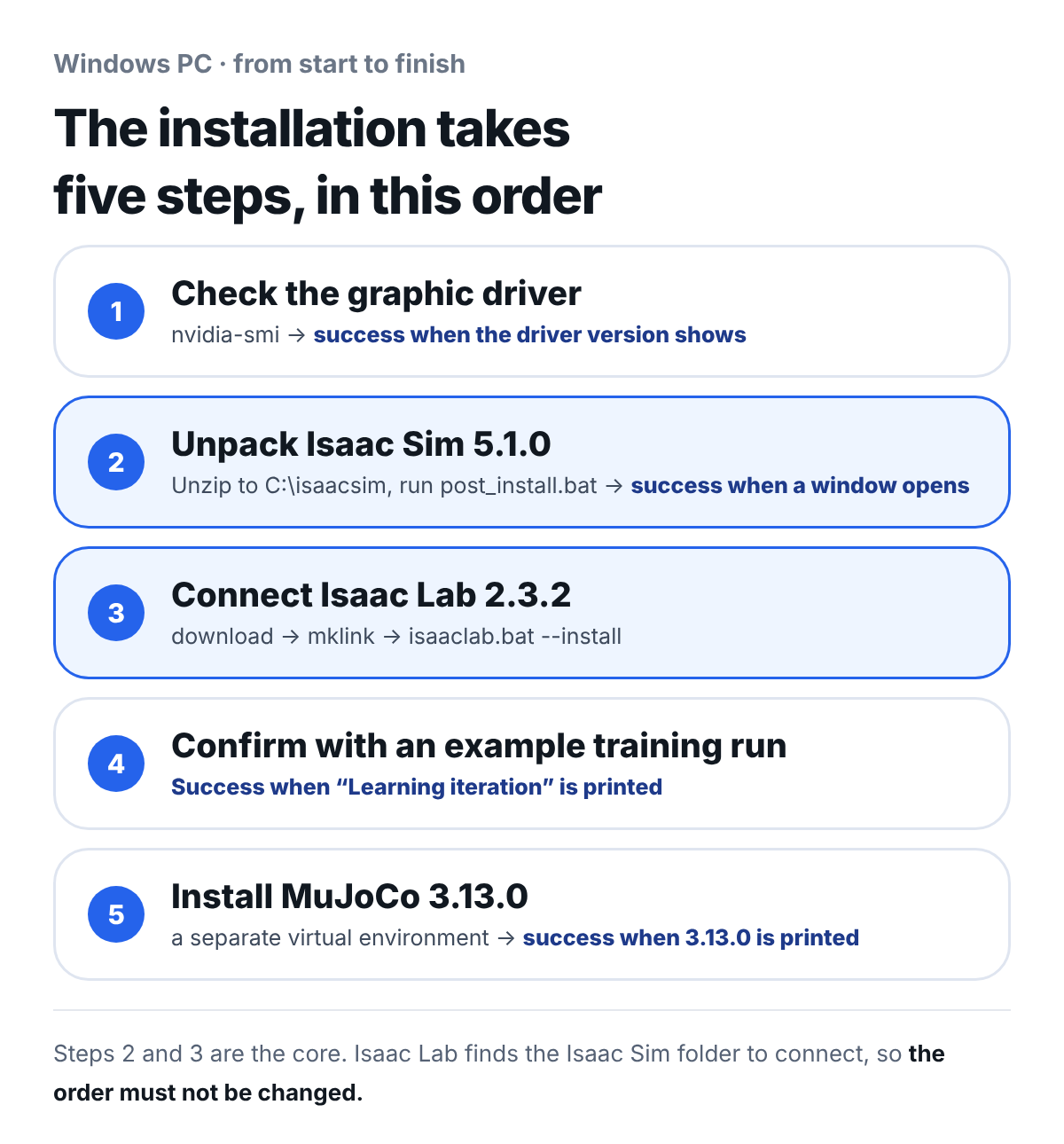
What to note: Do not swap step 2 (Isaac Sim) and step 3 (Isaac Lab). Isaac Lab finds the Isaac Sim folder you unpacked first and links to it.
Step 1. Check the graphics driver
- What to do: Open a command prompt and enter the command below.
- Confirm success: The driver version appears on the top line. The driver problem we ran into is in "Where do people get stuck?" below.
nvidia-smi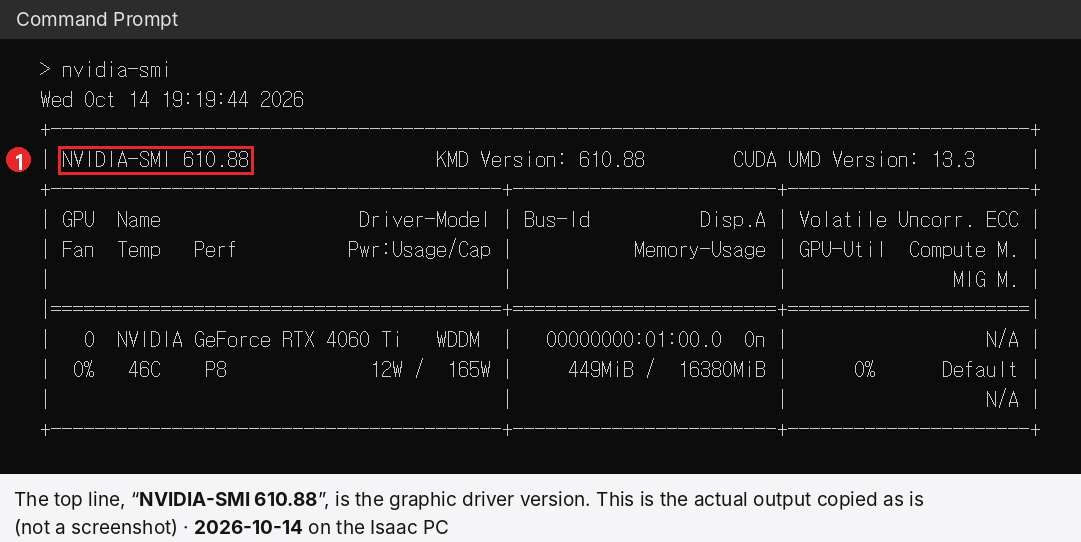
Output example: The figure above redraws the text output from our PC; it is not a screen capture. The version number differs from PC to PC.
Step 2. Unpack Isaac Sim 5.1.0
- Where to download: Download the Windows zip from the official Isaac Sim 5.1.0 download page. The file is 7.9GB, and about 15GB once unpacked.
- What to do: Unpack it to a short path in English (the official example is
C:\isaacsim). Runpost_install.batin the folder once, then start it withisaac-sim.bat(the order in the official Windows installation document). - Confirm success: The Isaac Sim window opens. The first launch takes a long time preparing the display (shader cache), so do not close it thinking it has frozen.
Step 3. Download Isaac Lab 2.3.2 and link it to Isaac Sim
- Where to download: Isaac Lab v2.3.2 official release · Install docs
- What to do: Run the commands below in order. Run
mklinkin an administrator command prompt, and replaceC:\isaacsimwith the path you unpacked to in step 2. - Confirm success: The last command finishes without errors.
git -c core.longpaths=true clone --depth 1 --branch v2.3.2 https://github.com/isaac-sim/IsaacLab.git IsaacLab
cd IsaacLab
mklink /D _isaac_sim C:\isaacsim
set OMNI_KIT_ACCEPT_EULA=YES
isaaclab.bat --install rsl_rl
mklink /D _isaac_sim ...is the link command that the Isaac Lab installation documentation gives for Windows. The link makes_isaac_simin the Isaac Lab folder point to the Isaac Sim folder, so that Isaac Lab can find Isaac Sim's Python modules and extensions. What we confirmed on our PC is only that the_isaac_simlink was created, anddirshowed the link type as<JUNCTION>. The displayed type may differ by environment.- The official installation puts the training components into the Python inside the Isaac Sim folder. On a PC shared by several people, it is safer to unpack Isaac Sim as a separate copy and link to it.
- The five errors we actually hit with this install command, and their fix commands, are collected separately in Five Isaac Lab Windows Install Errors and How to Fix Them. Please read it together before you install.
Step 4. Confirm the install with an example training run
- What to do: Run an example training briefly.
- Confirm success:
Learning iterationis printed in the training log. Judge success not by whether the program finished, but by whether result files and logs were created (the reason is in "Where do people get stuck?" item 2 below).
Step 5. Install MuJoCo 3.13.0
- Where to download: MuJoCo official site · Releases. The command below downloads the Python package.
- What to do: Install it in a separately created Python virtual environment so that it does not mix with Isaac Sim.
- Confirm success: The last line prints
3.13.0.
python -m venv mujoco_env
mujoco_env\Scripts\activate
pip install mujoco==3.13.0
python -c "import mujoco; print(mujoco.__version__)"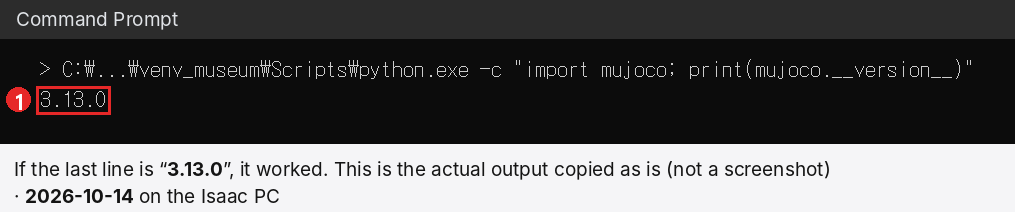
Output example: This figure redraws the text output from our museum test environment. It is not a screen capture.
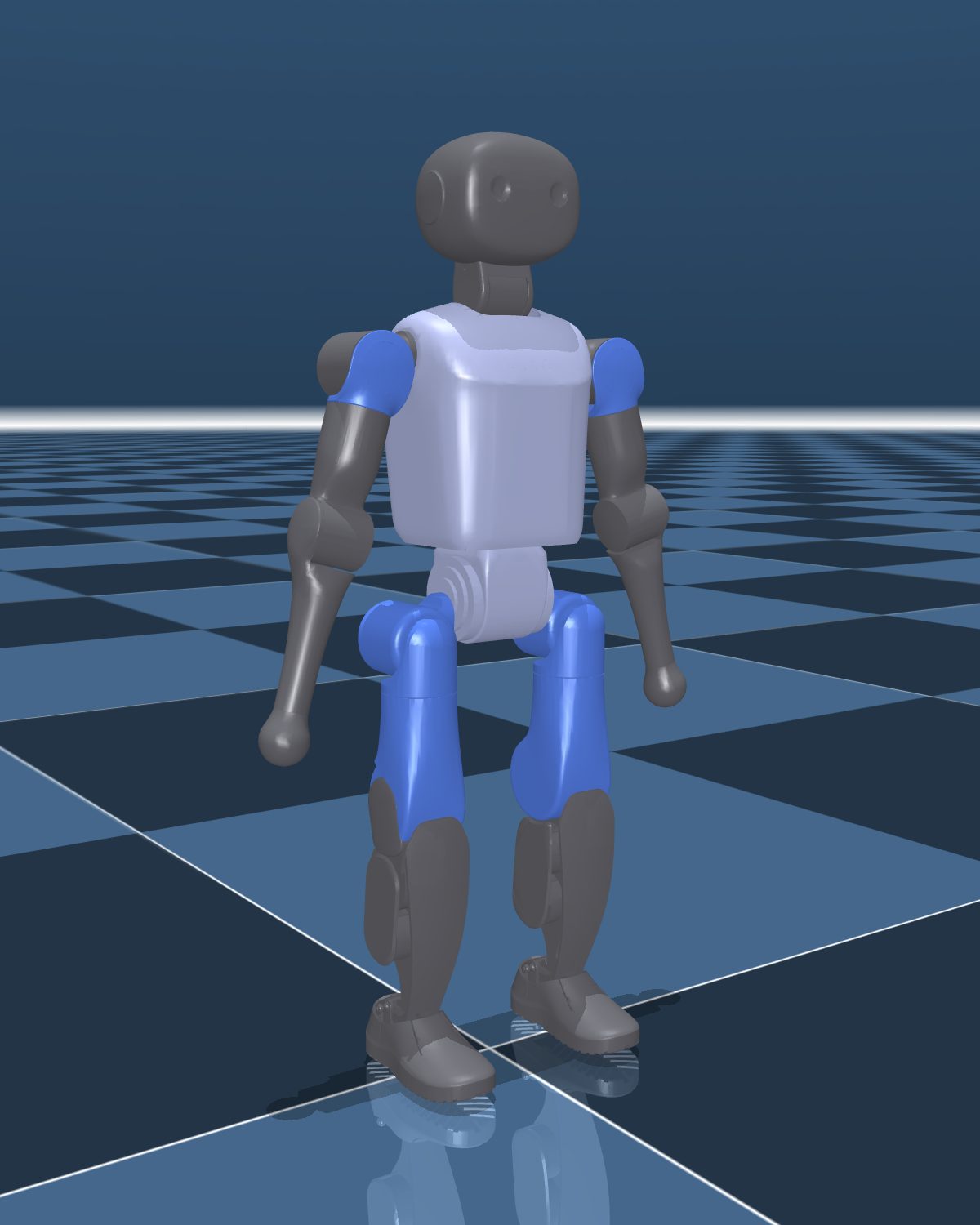
Simulation render: The figure above is a render of the K1 model drawn in MuJoCo, not a capture of the viewer window.
Where do people get stuck?
These are things we met afterward, beyond those in the five install errors.
1. It shuts down as soon as it starts — after raising the graphics driver
After we raised the graphics driver to 610.88 (as of 2026-09-30), Isaac Sim and Isaac Lab shut down right at startup with the default settings. The same PC ran fine with the default settings on driver 560.94 on September 28. Adding an option that changes the graphics processing method made them run normally.
| How you start it | Option to add |
|---|---|
| Starting with the Isaac Sim window | isaac-sim.bat --/app/vulkan=false (we confirmed the same option when starting Isaac Sim from a Python script) |
| Isaac Lab training and run commands | --kit_args=--/app/vulkan=false at the end of the command |
- In Isaac Lab, always attach it with an equals sign. If you separate it with a space, as in
--kit_args "--/app/vulkan=false", the value starts with--and is read as a new option, and the command fails with anexpected one argumenterror. - This option is a method we confirmed on our PC, not a fix given in the official documentation. The official documentation lists a different driver version (see the spec table above), so check your driver version first.
2. It shut down but looks like a "normal exit"
When it shut down at startup as in item 1, the batch file's exit code was 0 (normal). Do not judge that "it finished fine" from the exit code alone. Check by whether the result folder and files were actually created.
3. Saving the screen silently fails — Korean in the file name
When saving the simulation screen as an image, if the file name contained Korean characters, the save simply did not happen, with no error. Give saved files English names.
4. If your user folder name is in Korean
Temporary file paths can break. The fix command is in "One more thing if your user folder is in Korean" in the five install errors.
Frequently asked questions
Do I have to pay for them?
You can download and use all of them. Isaac Sim is used by agreeing to NVIDIA's license terms, Isaac Lab is under the BSD-3-Clause license, and MuJoCo is under the Apache-2.0 license. If you use them at an institution, please check each set of terms once.
If my graphics card is below the official minimum spec, can't I use it?
We ran K1 walking training on an RTX 4060 Ti 16GB, a lower tier than the RTX 4080 listed in the official minimum spec. We did not test other graphics cards, so we cannot promise anything. We recommend using 16GB of graphics memory as the guide.
Can I download the latest versions?
The combination we confirmed is Isaac Sim 5.1.0, Isaac Lab 2.3.2 and MuJoCo 3.13.0 (museum test environment). We recommend this combination if you follow this article. We have not tested a fresh install of the official latest combination, and the commands or errors may differ in other versions.
Is the method the same on Linux?
Isaac Sim and Isaac Lab also support Ubuntu, but the commands and sticking points in this article are what we met on Windows. We did not test Linux.
How do I install on several student PCs?
The same errors can occur on each PC, so bundling the fix commands into one batch file saves time. We go over the lab setup together in an education consultation.
This article is based on Windows 11 Pro · RTX 4060 Ti 16GB · RAM 32GB · Isaac Sim 5.1.0 · Isaac Lab 2.3.2 · MuJoCo 3.13.0. The process may differ with other versions, graphics cards or drivers, and on Linux.
Next step
Once the installation is done, follow the actual training in the first article of the series, Training Booster K1 to Walk in Isaac Lab Took 32 Minutes. We guide the installation method that fits your lab in an education consultation.
Versions used: Windows 11 Pro · Isaac Sim 5.1.0 (official zip) · Isaac Lab 2.3.2 · MuJoCo 3.13.0 · graphics driver 560.94 (2026-09-28) · 610.88 (from 2026-09-30)
Source: NVIDIA Isaac Sim 5.1.0 official documentation (the download, Windows installation, requirements and known issues pages), the Isaac Lab GitHub release and v2.3.2 installation documentation, and the MuJoCo official site, GitHub and documentation (all checked 2026-10-03). Our PC's specs and the sticking points are from our own installation work between 2026-09-17 and 10-02.
The copyright of this article and its figures belongs to SV Robotics. Quotations that credit a link to the original are welcome; reproducing or redistributing the full text, or reposting it as teaching material, requires permission.