
How Do You Create Your First Project in Booster Studio?
One Create agent button gets you started. But pick the wrong scene at first and you end up fighting a heavy screen. Here is how to choose.
If the installation is done, the next step is a project. This is a record of what we did when we installed Booster Studio 1.11.4 on Windows 11 and created our first one.
If you have not installed it yet, install Docker first and free up 15GB of disk space. Neither is a condition in the official guidance.
What does the screen look like when you first launch it?
It shows four buttons in the center and an AI assistant panel on the right. The activity bar on the left is the same as in VS Code.
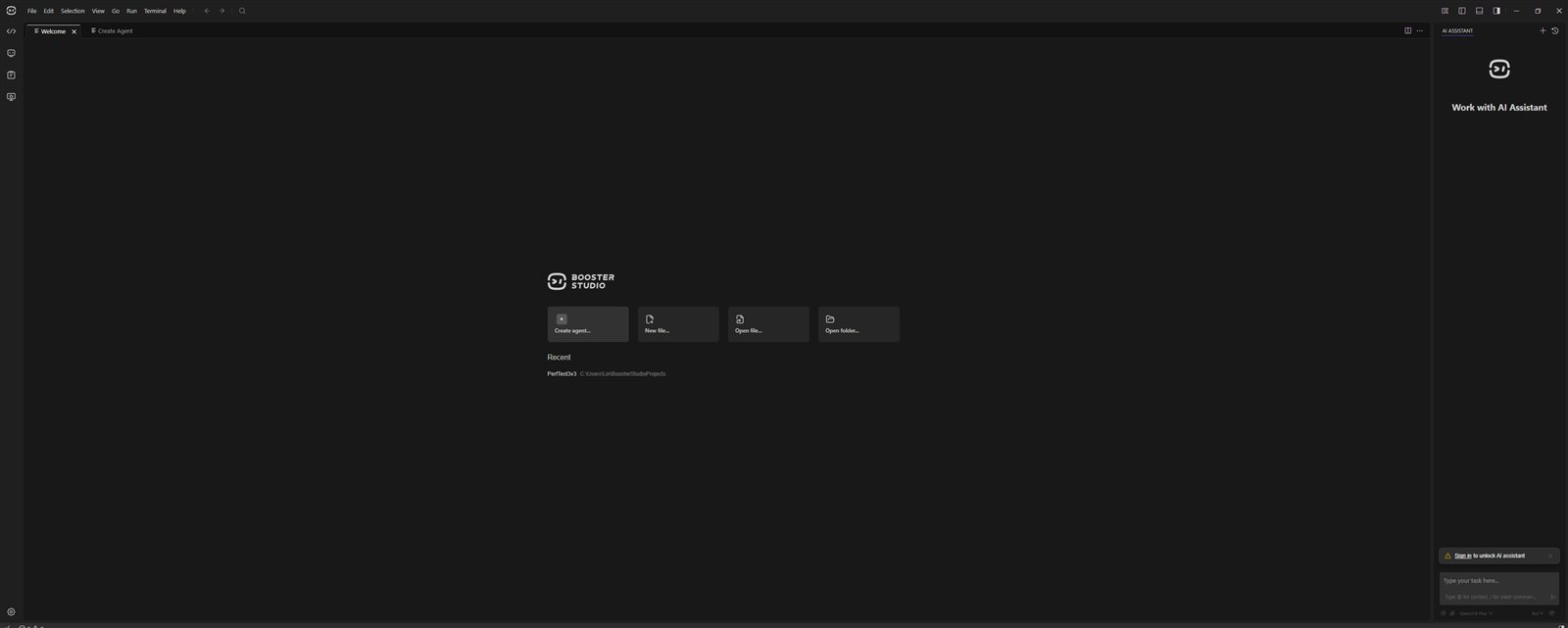
- ①
Create agent…— the button that creates a new project - ②
New file…/Open file…/Open folder…— buttons to create or open files and folders - ③ Recent — the list of recently opened projects (
PerfTest3v3). The save path shown next to it was blurred because it is a user folder
From the click on launch to the window appearing took 4.29 seconds (0.76 seconds to create the process). Because it is Electron-based, 10 processes start, and with nothing running it uses about 1,880MB of memory. It is not light.
The only starting point is Create agent… in the center. The other three are the same as in an ordinary editor. If you have used VS Code, the command palette (Ctrl+Shift+P), extensions and terminal all work as before, so the only new things to learn are this button and the Virtual robot tab that comes later.
How do you create the first project?
Press Create agent… and a wizard opens. Change only the name and the rest follows automatically.
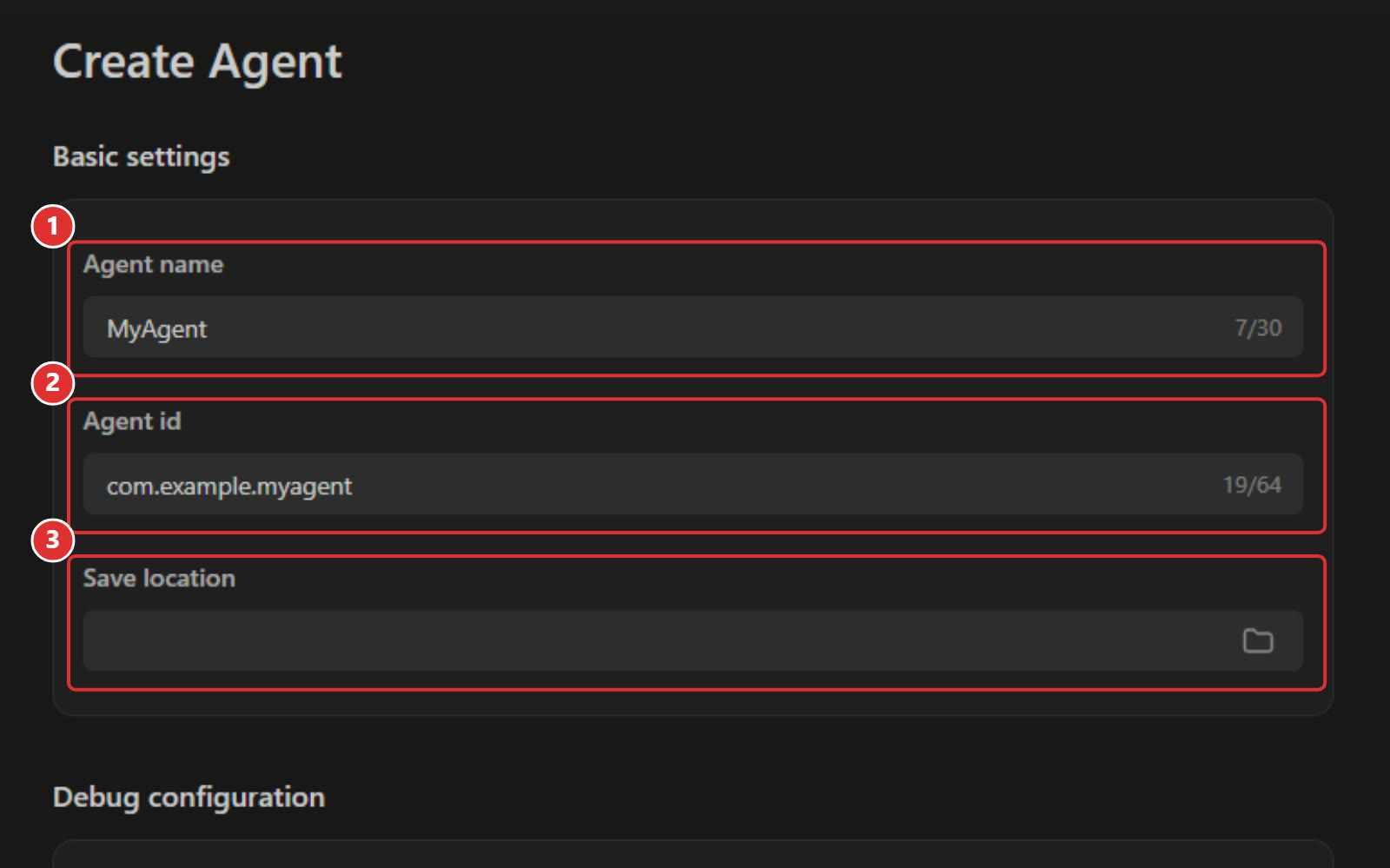
- ① Agent name — the project name. The default on screen is
MyAgent, and when you change it the two items below follow automatically - ② Agent id — the package ID. The default on screen is
com.example.myagent - ③ Save location — the folder where the project is saved. Blurred because it is a user folder path
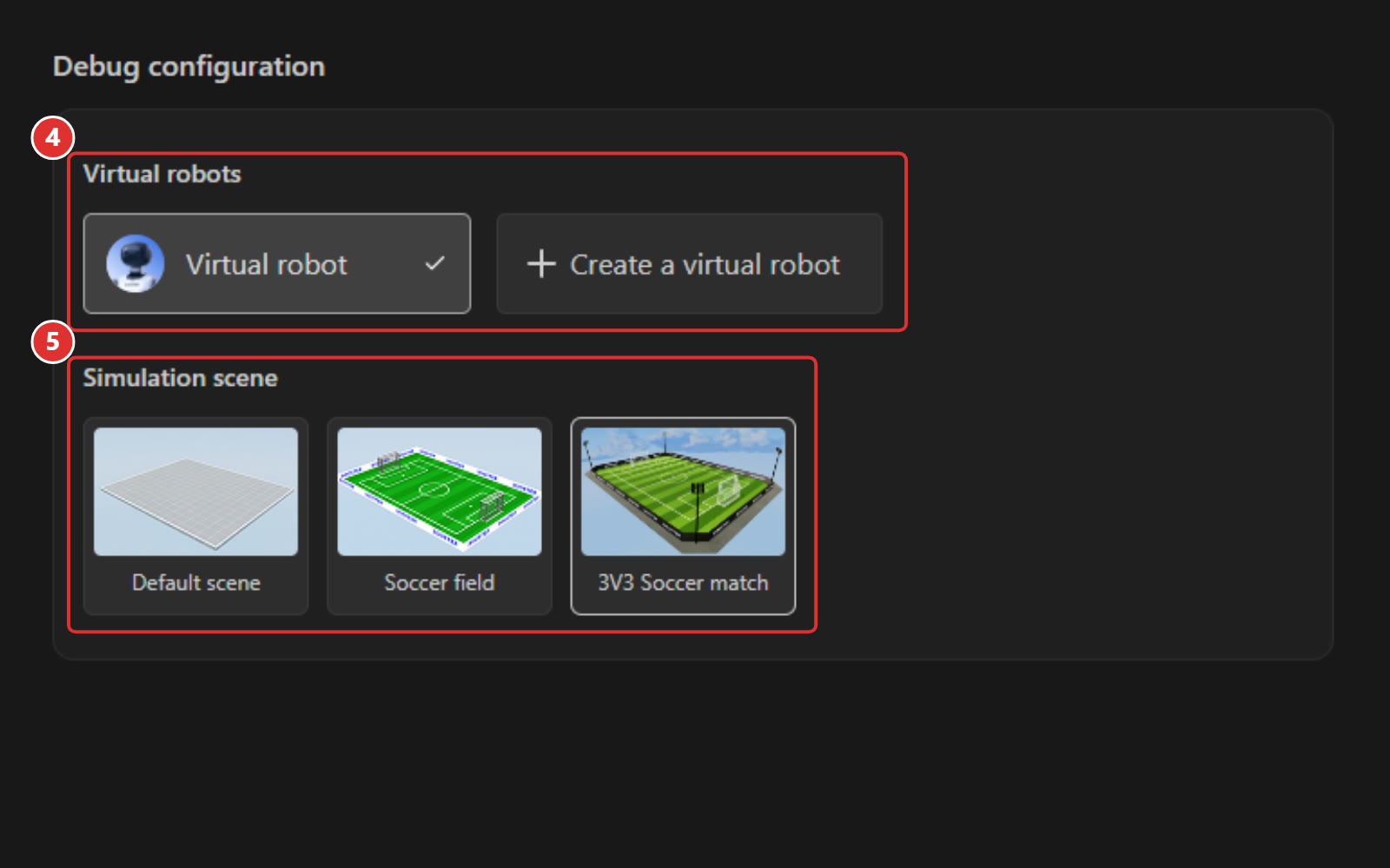
- ④ Virtual robots —
Virtual robotis selected (checked). It means you proceed without a physical robot. Next to it is aCreate a virtual robotbutton - ⑤ Simulation scene — one of
Default scene/Soccer field/3V3 Soccer match
The last one is the only thing you actually need to think about here.
When you press create, Booster Studio activates the project right away. In our measurements, downloading the development container image agent-dev (2.35GB) took about 105 seconds, and building, signing and packaging the agent took about 7 seconds. If Docker daemon connection error repeats at this step, Docker Desktop is turned off.
Which scene should you choose?
If it is your first time, choose Default scene. It has a single robot, so it is light, and all the sensor and control panels in the IDE come alive.
Default scene— 1 robot. Light load, and you can use all the control panelsSoccer field— a single robot on a soccer field3v3 Soccer match— six humanoids actually play soccer. It is quite heavy in return
We chose 3v3 Soccer match to measure the performance limit, and on a Ryzen 5 5600X · 16GB RAM · RTX 2060 it ran at an average of 0.50x. The screen is flashy, but it was not a good condition for learning.
What is an Agent?
It is one app that runs on the robot. It is a Python package that defines a role such as waving a hand, shaking hands, or chasing and kicking a ball.
UI such as buttons and icons is also drawn automatically by the app or Booster Studio once the Agent defines it. The concept was created to lower the barrier to entry compared with conventional ROS 2 development, and the development language is Python.
Two default templates are included: example_agent (hand waving and handshake) and soccer_sim (3v3 strategy, including a state machine, path planning and obstacle avoidance).
If you open example_agent, it is only a few Python files and a configuration file, so it does not take long to understand the structure. At the start, the fastest way in was to modify this template and make the robot do a different motion.
Can you use the AI assistant right away?
No. It requires login. Below the panel it shows "Sign in to unlock AI assistant".
This is a disappointment, because it is the Vibe Coding feature the product puts forward as its headline. However, running simulations and editing code all work without logging in. Our tests were also completed from start to finish without logging in.
Frequently asked questions
Does the simulator open right away when I press Create agent?
No. The first run downloads about 12GB of Docker images and takes around 7 minutes. From the second run on, the cache remains and it opens in under a minute.
Is it fine to choose 3v3 on my first time?
We do not recommend it. The load is high, and the control panels are locked in multi-robot mode. Start with Default scene.
Can I enter anything for Agent id?
It is filled in automatically when you change the name. We left the default and went ahead.
Is Python the only development language?
The agent template in 1.11.4, which we checked, was Python. We did not check other languages.
Next steps
These posts are good to read after this one.
- Can You Use the Robot-View Camera and Joystick Inside the IDE? — Explains why the control panels that turn on in the Default scene are locked in 3v3.
- Does Six-Humanoid Soccer Really Run Without a Robot? — A record of actually running 3v3, the heaviest of the three scenes.
- 3v3 Simulation Speed Can Differ by Two Times Depending on Conditions — Measures what speed you get when you choose 3v3.
What is described here is what we confirmed by installing Booster Studio 1.11.4 ourselves on Windows 11 Pro build 26100. The AI assistant, which requires login, and templates for languages other than Python are not covered in this post.