
What Is Booster Studio Built With?
While using it we kept thinking it looked familiar, so we opened the install folder. Six things sit on top of VS Code.
While using Booster Studio, a thought comes up.
"Where have I seen this screen before?"
We were curious, so we opened the install folder. We are leaving the evidence here too.
What is inside Booster Studio?
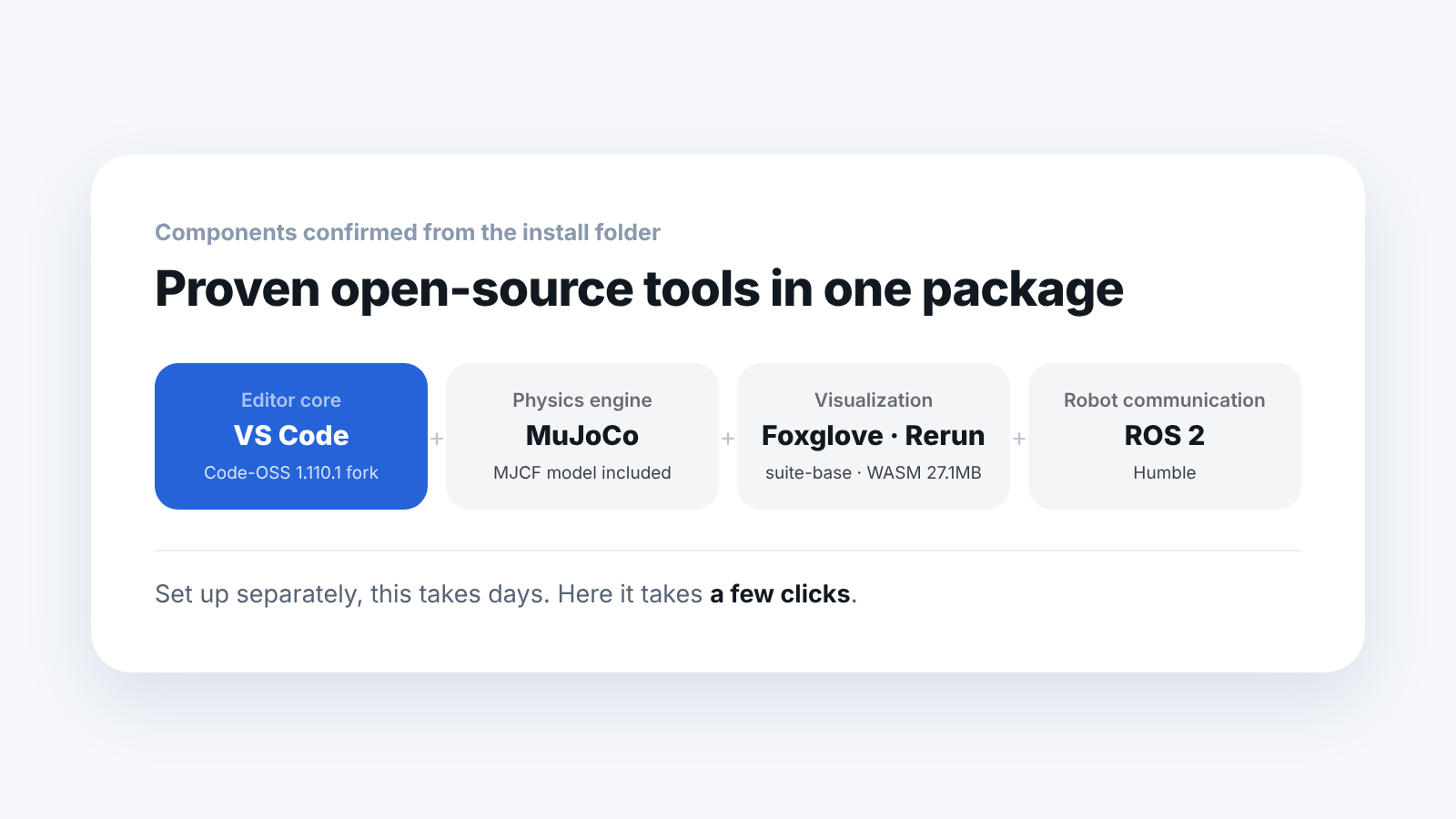
- Editor core — a 1.110.1 fork of VS Code (Code-OSS)
- 3D and sensor visualization — from the Foxglove Studio family
- Data viewer — Rerun viewer (WASM)
- Physics engine — MuJoCo
- Robot communication — ROS 2 Humble
- Native module — Rust
The evidence is this. product.json states the VS Code version, and the visualization module is named Foxglove's suite-base. The Rerun viewer is included as a 27.1MB WASM file, and the container tag ends in -humble.
We confirmed the other two from files as well. On the physics engine side, there is an MJCF model, T2_v1p2_simple.xml, and the native module is a 22.2MB file named native-addon.win32-x64-msvc.node, built in Rust.
So what kind of tool should I think of it as?
It is not built from scratch. It is an integrated package that ties together proven open-source tools.
We do not see that as a weakness. It finishes in a few clicks what would have taken days if you set up MuJoCo, ROS 2 and Foxglove separately. We think that is the value of this tool.
Being based on a familiar tool is an advantage too. If you already use VS Code, your shortcuts work as they are.
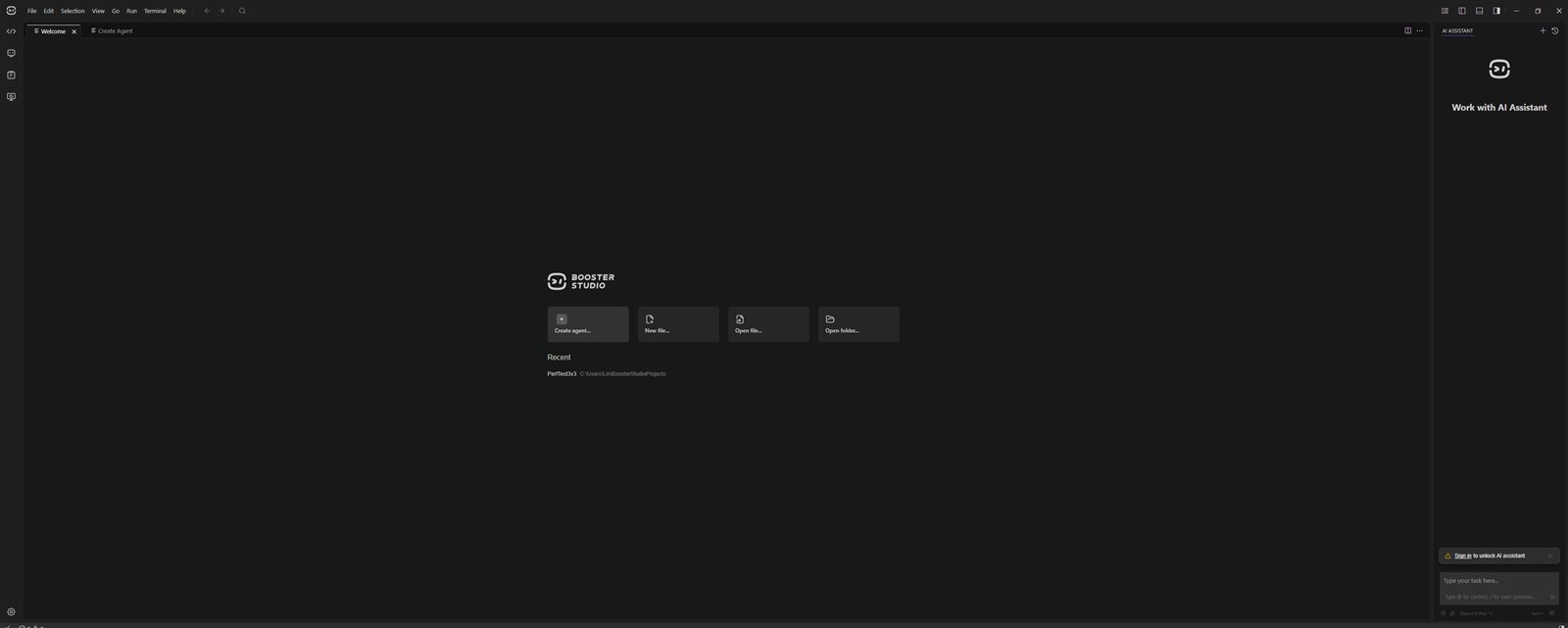
- ① Menu bar —
FileEditSelectionViewGoRunTerminalHelp, with back and forward arrows and a magnifier icon on the right - ② Activity bar on the left — four icons are lined up vertically
- ③ Editor tabs — the
WelcomeandCreate Agenttabs
Which extensions come installed by default?
101 extensions come preinstalled. For Python development there are ms-python.python, Pylance, Pyright and debugpy, and for remote development there are open-remote-ssh and open-remote-containers.
It is worth noting that remote development tools are preinstalled. It means a setup where students connect to a lab workstation from their laptops is possible without installing anything extra. For reference, the 101 we counted is for 1.11.4, and you can check the list directly in the command palette.
Two project templates are also built in.
- example_agent — waving, handshake
- soccer_sim — RoboCup 3v3 strategy (state machine, path planning, obstacle avoidance)
At the very top of soccer_sim's main.py, there is a helpful explanation of the structure. It is worth reading. It works well as a teaching resource. The code is fairly long, so following it from the state machine gives you the flow.
What should I decide first before using it in a course?
Knowing the makeup lets you decide how far to go with this tool and where to start using something else.
- MuJoCo exercises — as they are, inside Booster Studio
- Isaac Sim training — needs a separate installation
- ROS 2 courses — Humble is included, so you can use it right away
If you already teach ROS 2, it also means students can start in a familiar environment.
Above all, the setup time disappears entirely.
Just installing each of them and connecting them to each other for MuJoCo, ROS 2 and Foxglove takes days. Add the time spent tracking down mismatched versions and it takes longer. You end up spending the whole first week of the lab on it.
Booster Studio skips that process. It starts from a screen where the robot is already standing as soon as you install.
The flip side is that students do not get the experience of handling each tool separately. Setting aside a session late in the curriculum for setting up ROS 2 themselves would balance this out.
Which version should I treat as the reference?
We checked one version only, 1.11.4.
The VS Code fork version, the ROS 2 distribution and the number of built-in extensions can all change with updates. If you write the version in your course materials, students will not be confused later.
Checking is simple. The editor version is in product.json in the install folder, and the ROS 2 distribution is in the container tag. If you write both on the first page of the course materials, students will notice right away when they download a different version.
Frequently asked questions
Can I use VS Code extensions as they are?
The ones for Python development are already included. Other extensions mostly work too, but we have not checked all of them.
Do I not need to install MuJoCo separately?
Not for use inside Booster Studio. If you want to use it outside, a separate installation is needed.
ROS 2 is Humble. What about other versions?
In the 1.11.4 we checked, it is Humble. We confirmed it from the container tag.
How did you check this?
We opened product.json in the install folder, the module file names and the container tag ourselves.
Next steps
These posts are good to read after this one.
- Which Robot Simulator Should You Install in a Teaching Lab? — The criteria for choosing when you install Isaac Sim or others separately, outside Booster Studio.
- When Should You Start Teaching ROS 2? — Since ROS 2 is included, this covers at which stage of a course to place ROS 2.
- How Do You Create Your First Project in Booster Studio? — Now that you know the makeup, this is the order for creating a project yourself.
What is described here was confirmed by opening the Booster Studio 1.11.4 install folder ourselves. The makeup may change as versions go up.