
Do Not Run Booster Studio as Administrator
Automatic updates are quietly switched off. This also explains why the install path is not Program Files.
When you install a new program, you probably open it as administrator out of habit. We did too.
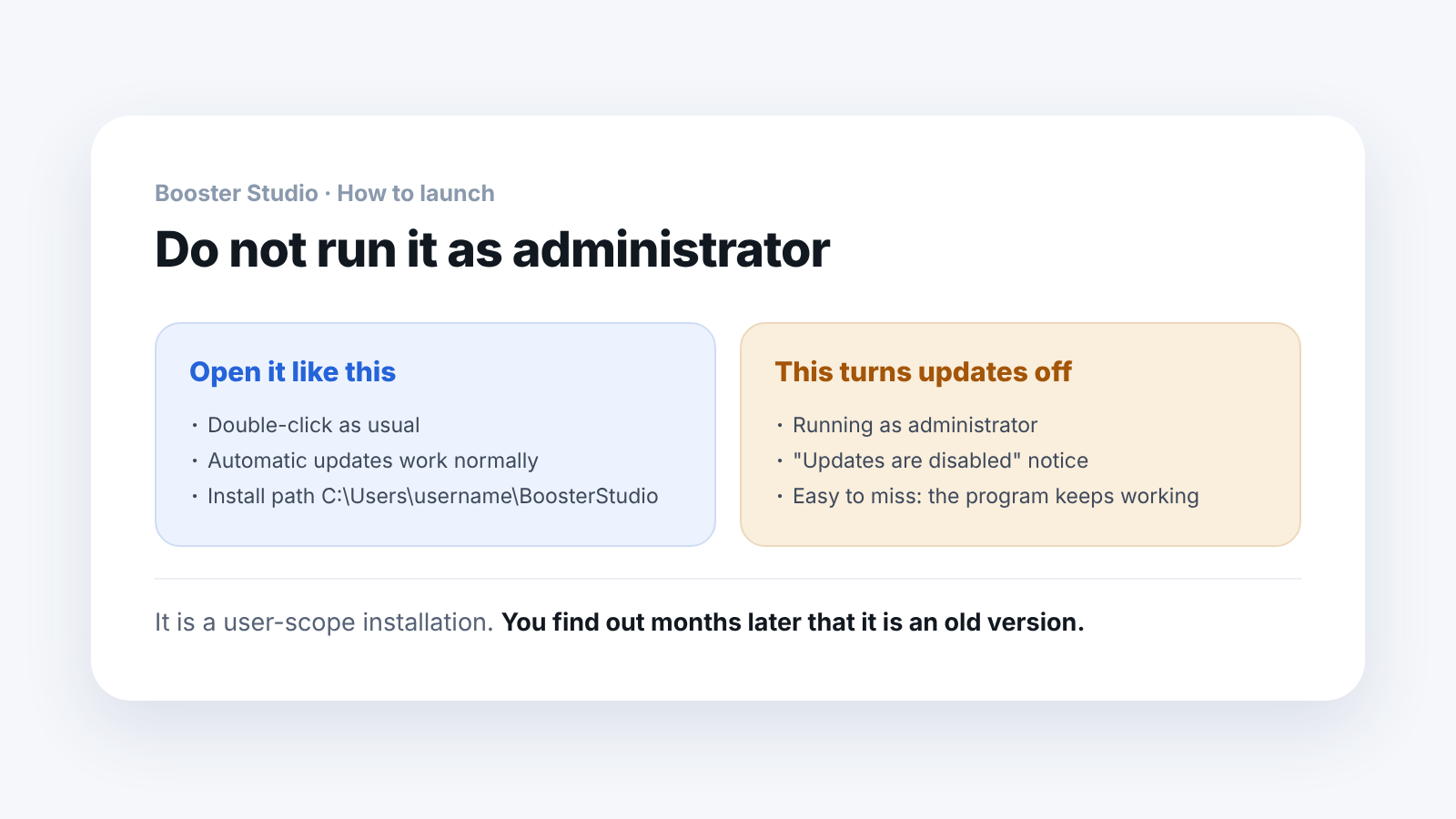
With Booster Studio, don't. Automatic updates are quietly switched off.
What warning appears when you run it as administrator?
If you start it as administrator, this message appears.
Updates are disabled because you are running
the user-scope installation as Administrator
It means "this is a user-scope installation, and because it was run as administrator, updates were turned off."
The trouble is that the notice is easy to miss, because the program keeps working normally. A few months later you wonder "why is this still the old version?"
Losing updates matters here because the product is new. The official release was 2026-06-30, and the version we received was 1.11.4. Products at this stage get fixes often.
Why does this warning appear?
The default install path is this.
C:\Users\username\BoosterStudioIt is not C:\Program Files\....
That is because this is a user-scope installation that needs no administrator rights. It goes inside your own account folder, so no elevated permission is needed.
When you run it as administrator, though, the program gets confused. It asks itself "why is an administrator running something that lives in a user's account folder?" and locks the update feature.
So how should I run it?
Open it with a normal double-click. That is all.
If you already started it as administrator, close it and open it again. Your settings are not damaged.
Checking is simple too. The notice appears only when you run as administrator. If you do not see it, the program was opened with normal rights. If you leave the launch checkbox on the last screen of the installation wizard as it is and finish, it opens with normal rights.
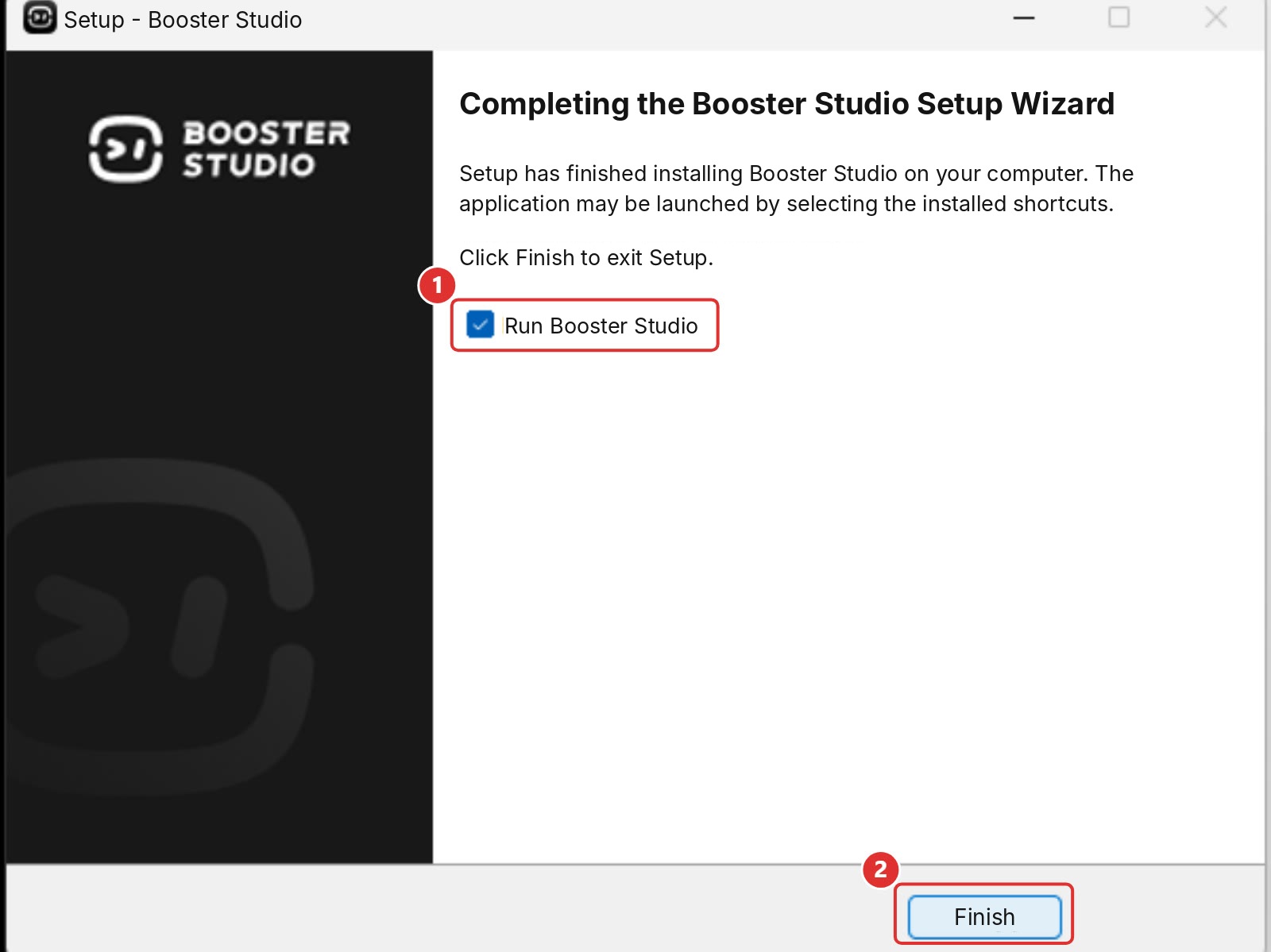
- ①
Run Booster Studio— left checked - ②
Finish(F)— the button that ends the installation
If your company PC policy always runs programs as administrator, you will need to keep up with updates manually.
For a teaching lab there is one more thing to count. Because this is a user-scope installation, it is installed separately for each account. On shared PCs where students use different accounts, you get one 1.56GB installation folder per account.
Which of the six installation steps need attention?
You can click through the rest.
First, the install location. The default is a user folder, as described above.
Second, the disk space notice. Do not trust the "at least 1.55GB required" note at the bottom of the installer either. Including the Docker images, it takes about 13.4GB. We cover that in a separate post.
For the additional tasks in step 3, the defaults are fine. In particular we recommend leaving desktop shortcut and add to PATH turned on. With PATH set, you can open it from a terminal with the booster-studio command (after a reboot).
Once you have checked these two, steps 4 to 6 are just waiting. On our PC, copying the files took 3 minutes 17 seconds. That is reasonable for 28,032 files being unpacked.
What does the license agreement say?
I had to smile while reading the license agreement in step 1. The text begins with MIT License / Copyright (c) 2015 - present Microsoft Corporation. That means it is a fork of VS Code (Code-OSS). The version we checked was 1.110.1.
If you already use VS Code, shortcuts, extensions, the terminal and the command palette all carry over unchanged. There is much less to learn.
It also helps to tell students this first. "It's the same as the editor you already use" lowers the barrier to entry quite a bit.
Frequently asked questions
Does running as administrator cause other problems?
The only thing we confirmed is that automatic updates are turned off. The other features worked normally.
Can I change the install path to Program Files?
Doing so may cause permission problems. Leaving the default is the safer choice.
How do I know whether updates are turned off?
A notice appears. If you missed it, close the program and open it again with normal rights.
What about PCs used by several people?
It is a user-scope installation, so it is installed separately for each account. If it is a lab PC, plan for that.
Next steps
These posts are good to read after this one.
- What Is Booster Studio Built With? — Checks the VS Code fork, which we saw in the license agreement, against the installation folder.
- Install Docker Before You Install Booster Studio — Lists the conditions to prepare before installing.
- How Do You Create Your First Project in Booster Studio? — If the installation is done, this leads on to your first project.
What is described here was confirmed by installing Booster Studio 1.11.4 on Windows 11 ourselves.