
Can You Use the Robot-View Camera and Joystick Inside the IDE?
Yes. But if you open a 3v3 project, every control panel is locked. The screen gives no reason, so finding the cause took a long time.
It is easy to end up only watching the robot walk in the simulator window, but what a lab exercise really needs is the tab inside the IDE. It is also the screen we found last and spent the longest on in this verification. We checked it on Booster Studio 1.11.4 installed on Windows 11.
Can you control the robot directly inside the IDE?
Yes. Click Virtual robot in the editor tabs and a Foxglove-style panel opens, where you can make the robot walk and turn its head.
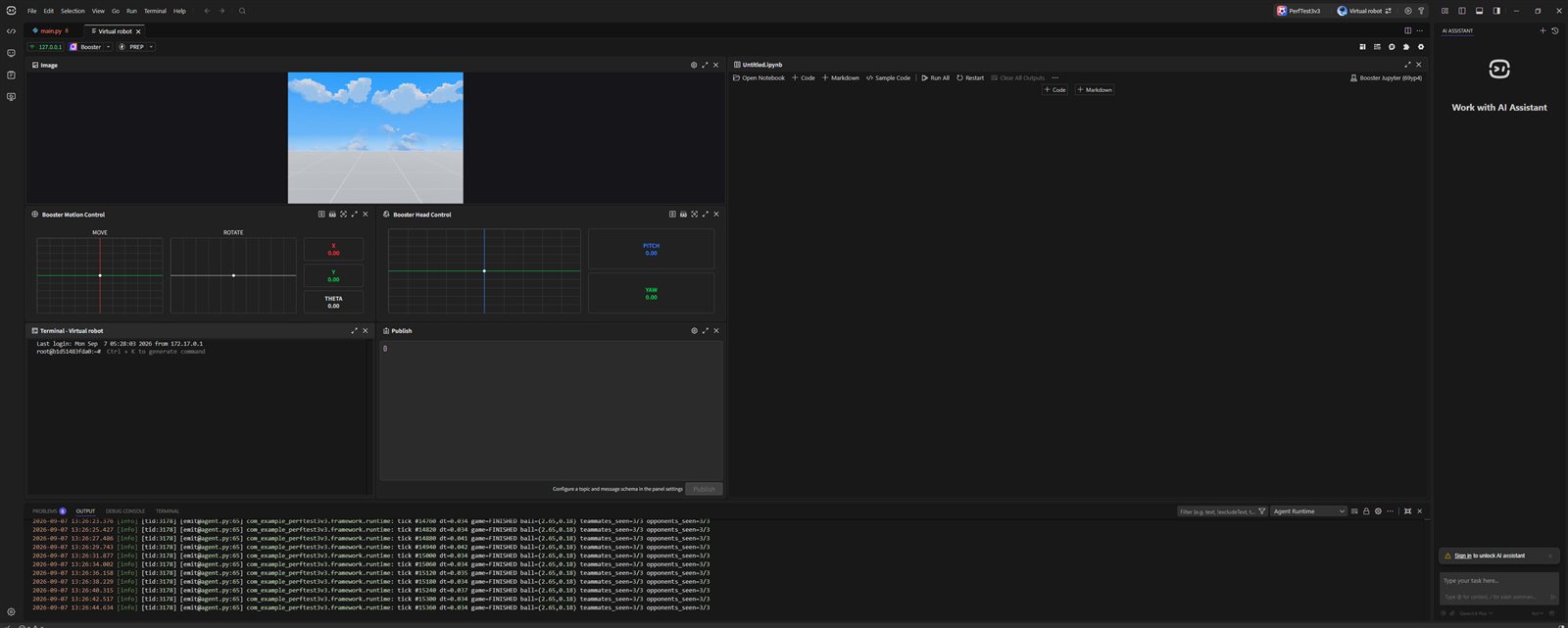
- ① Image — the robot-view camera feed. The screen shows sky and floor
- ② Booster Motion Control —
MOVEandROTATEjoysticks and theXYTHETAvalues - ③ Booster Head Control — the head control area and the
PITCHYAWvalues - ④ Terminal - Virtual robot — a container shell. A
root@…prompt is showing - ⑤ Publish — a field for the message to send and a
Publishbutton
If the simulator window is the view from outside, this tab is the view from the robot. For lab work the latter matters more, because you cannot learn what sensor values the robot receives or how it reacts to each command by watching from outside.
Why are all the panels disabled?
Because the project was created with the 3v3 scene. With six robots it is set to multi-robot mode, and the motion and head control panels are all locked with This widget is not available in multi-robot mode.
It seems to be locked because, with several robots, there is no way to choose which robot to send a command to. The problem is that the screen gives no reason anywhere. We also stared at it for a long time, thinking it was broken.
The answer is simple. Open it from a project created with the Default scene (one robot) and everything comes alive. The scene choice when you create the project is where the two paths split.
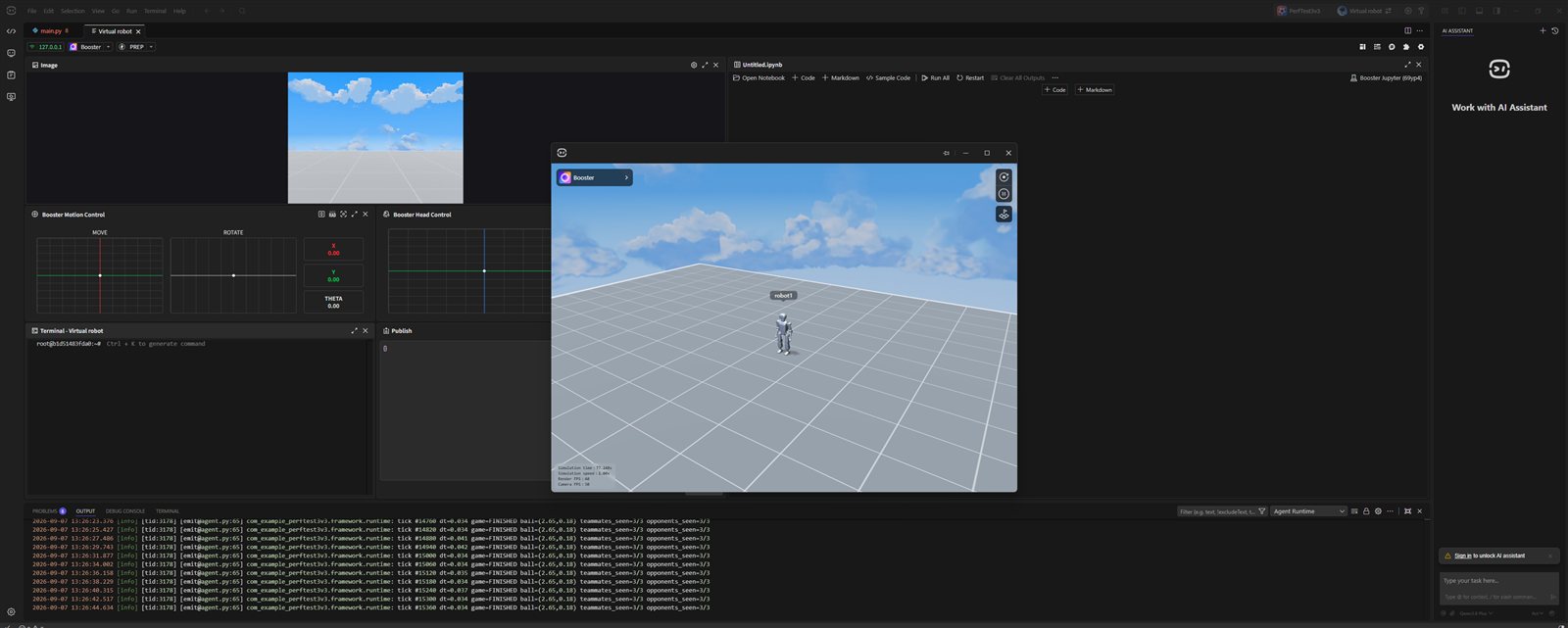
- ① Image — the camera feed is coming in
- ② Booster Motion Control — the joysticks and the
XYTHETAvalues are shown, not locked - ③ Simulator window — a single
robot1is standing
Which panels are included?
Opened with one robot, we confirmed six panels.
- Image — the robot-view camera feed comes in live
- Booster Motion Control — move and rotate joysticks. The
XYTHETAvalues are also shown as numbers - Booster Head Control — directly controls the head
PITCHandYAW - Terminal - Virtual robot — a shell that goes straight into the robot container
- Publish — lets you publish a message directly to a ROS topic
- Notebook — a Jupyter notebook attached inside the IDE
The joysticks were comfortable because you can push them while watching the values. Even a slight push of the move joystick changes the X value as a number, and the robot walks by that amount. You can also fire the same command at a ROS topic directly from the Publish panel, so the flow of getting a feel on screen and then moving it into code connects naturally.
This setup is possible because Booster Studio is built on Foxglove-family modules and ROS 2 Humble.
What should you look at first when learning?
Start by making one robot walk yourself and checking what the camera sees.
For someone learning, this is far more useful than the 3v3 soccer match. Giving a command with the joystick, the robot moving, and then seeing how the camera feed and topics change is the basics of robot control.
The load is also much lighter. Compared with 3v3 at an average of 0.50x, the one-robot scene had headroom. By our standard, spending 30 minutes on this tab left more behind than watching a 3v3 match for an hour.
Frequently asked questions
The panels are disabled. Is it broken?
No. In a scene with several robots such as 3v3, it is set to multi-robot mode and the control widgets are locked. They come alive when you open a project created with the Default scene.
Can I change a project that was already created as 3v3?
We created a new project with the Default scene and checked it there. Changing the scene of an existing project was not verified.
Is the camera feed viewed the same way on a physical robot?
We checked only with a simulated robot. Connecting a physical robot is outside the scope of our verification.
Where does the Terminal panel go into?
Inside the robot container. You can run ROS 2 commands directly in it.
Next steps
These posts are good to read after this one.
- How Do You Create Your First Project in Booster Studio? — The step where you choose a scene when creating a project is where the two paths split.
- What Is Booster Studio Built With? — Covers the Foxglove-family modules and ROS 2 setup that make these panels possible.
- When Should You Start Teaching ROS 2? — Covers at which stage of a course to place the ROS 2 you meet in the Terminal and Publish panels.
What is described here is what we confirmed by installing Booster Studio 1.11.4 ourselves on Windows 11 Pro build 26100. It is based on a simulated robot and does not cover connecting a physical robot.