
Five Isaac Lab Install Errors on Windows and How to Fix Them
Installing Isaac Sim 5.1.0 and Isaac Lab 2.3.2 on Windows with the official commands stopped us in five places. This article gives the pkg_resources error, an access violation right after training starts, and the missing URDF extension 2.4.31, with the error text and fix commands as they appeared.

Physical AI, Hands On · Part 3 · Previous article: Can One PC Run a Humanoid Walking AI Course?
This article publishes only the practice process and results. Institutions that adopt the course receive the textbook text and the instructor's guide.
Following the official install commands on Windows as written, we got stuck in five places. Two are part-version problems that anyone can hit right now, one appears only when you use a robot description file (URDF), and the other two are symbols in the Windows command prompt.
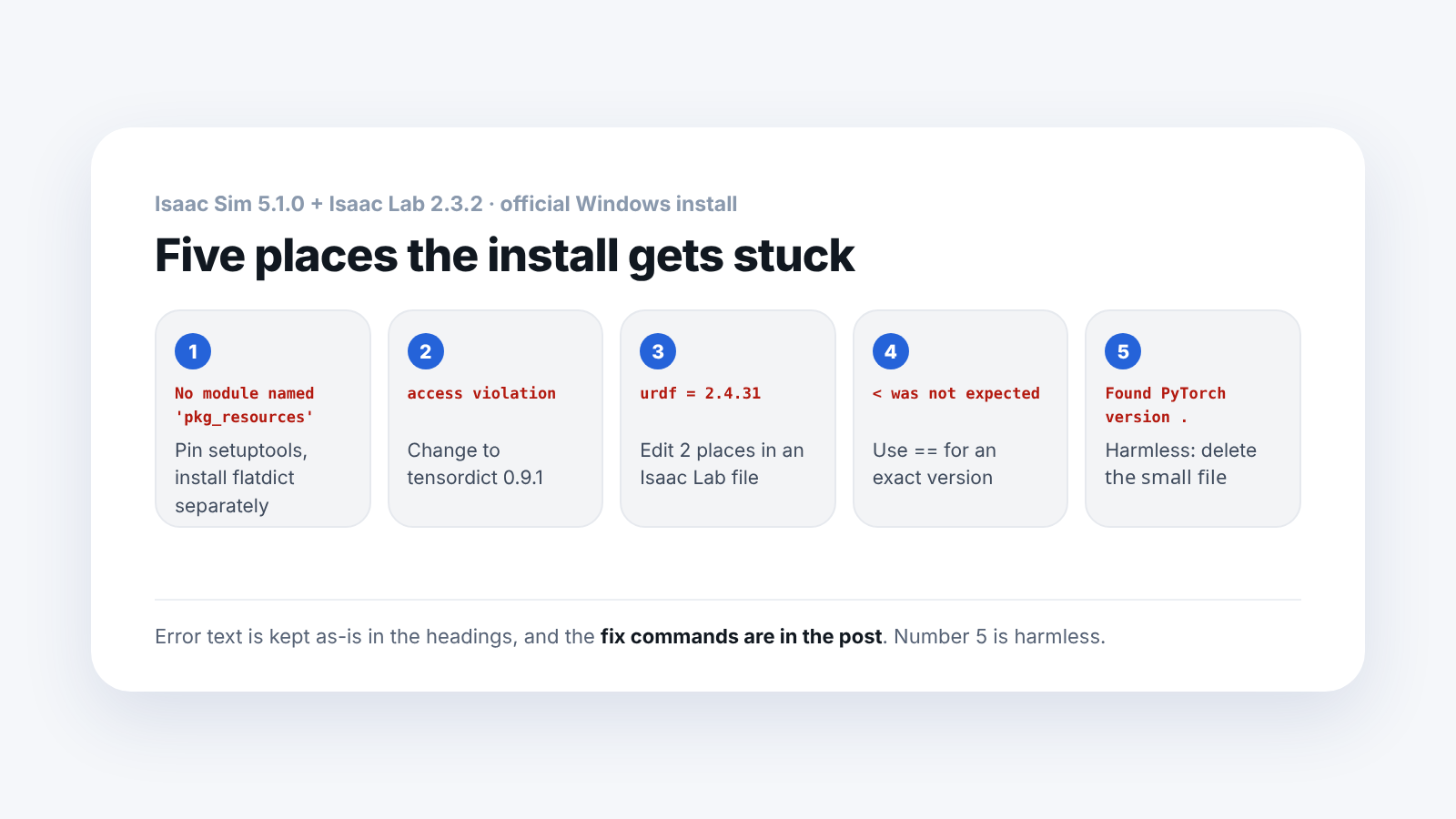
Below are the errors we actually saw, and the order of fixes, from installing the official Isaac Sim 5.1.0 zip + Isaac Lab 2.3.2 into a new folder.
2026-09-27 GitHub check: Error 1 was fixed on the Isaac Lab main branch after v2.3.2 (#4581 and #5182; the development branch removed that component entirely in #6547). For error 3, a maintainer replied that the 3.0-series development branch changed how URDFs are imported, so this error no longer appears (#6005; a proposed fix was not merged and was closed). As of 2026-09-27, this fix does not appear in the list of official 2.x releases. If you install v2.3.2, you still need the fixes below as written.
In what order did we install?
We unpacked the official zip, fetched Isaac Lab and linked them, then ran the install command.
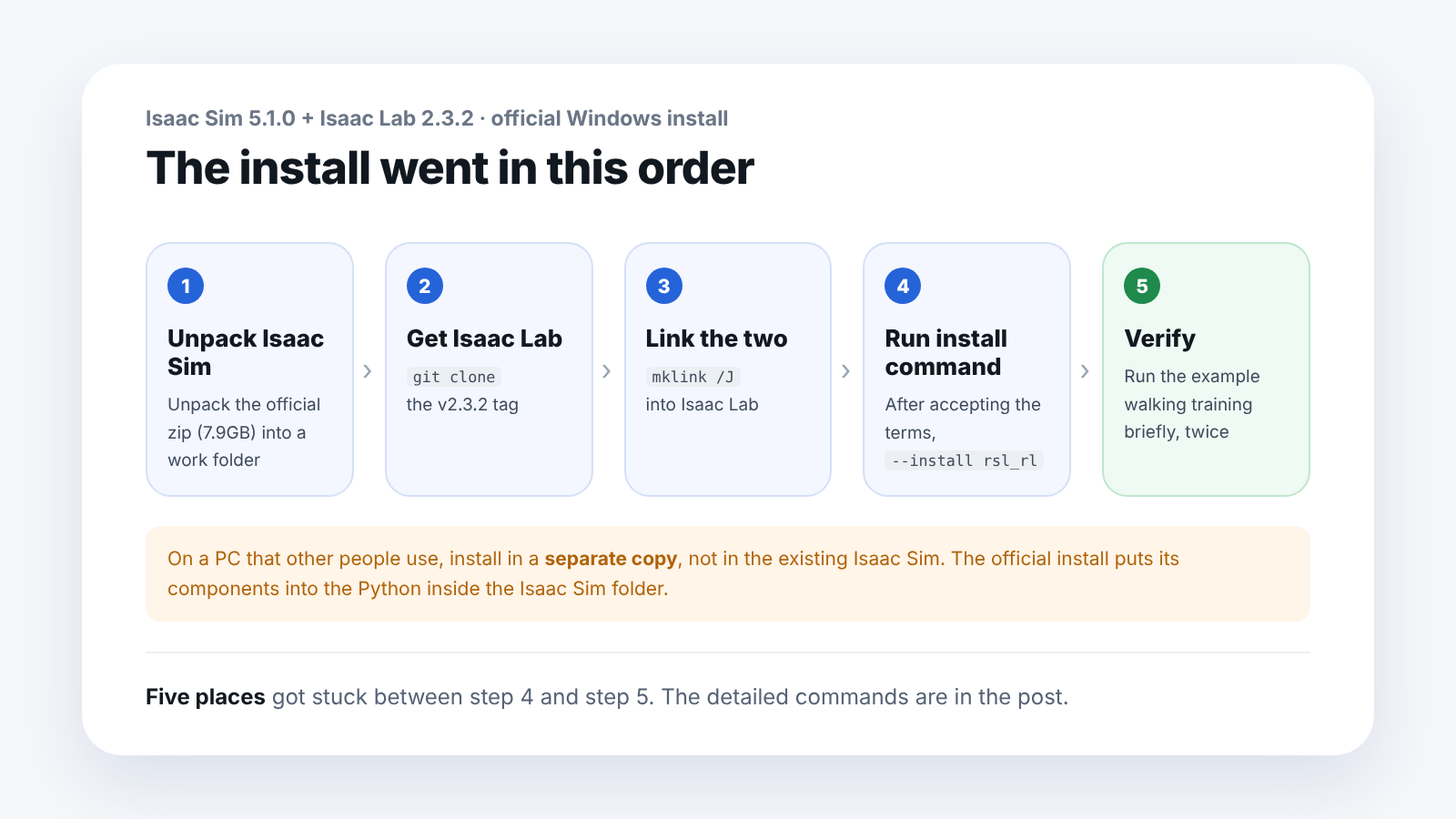
rem 1) Unpack the official Isaac Sim 5.1.0 zip (7.9GB) -> <work folder>\isaac-sim-5.1.0
rem 2) Get Isaac Lab
git -c core.longpaths=true clone --depth 1 --branch v2.3.2 https://github.com/isaac-sim/IsaacLab.git IsaacLab
rem 3) Link Isaac Sim into the Isaac Lab folder
mklink /J IsaacLab\_isaac_sim <work folder>\isaac-sim-5.1.0
rem 4) Set the terms-acceptance environment variable, then install
set OMNI_KIT_ACCEPT_EULA=YES
cd IsaacLab
isaaclab.bat --install rsl_rl
The official install puts components into the Python inside the Isaac Sim folder. If it is a PC that other people use, it is safer to install into a separate copy rather than the existing Isaac Sim. We did it that way too.
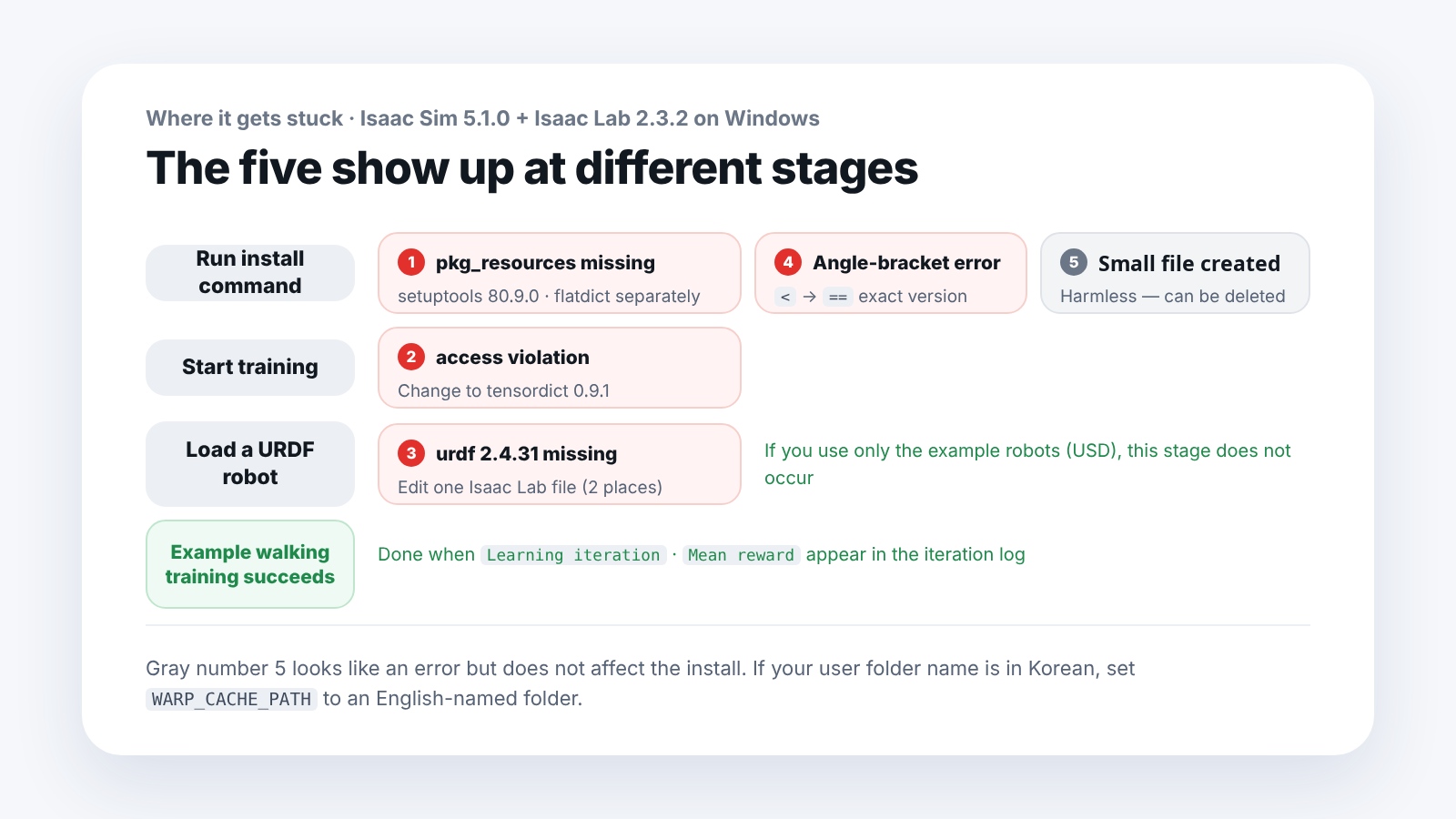
The five problems appear at these install stages.
1. No module named 'pkg_resources': only the core component fails to install
Symptom: During installation only the core isaaclab component fails, with No module named 'pkg_resources'.
Cause: The dependency flatdict 4.0.1 does not build with the latest setuptools. It has nothing to do with Windows, and anyone can hit it right now.
Fix: Pin setuptools to an exact older version, install flatdict separately, then run the install command again.
isaaclab.bat -p -m pip install setuptools==80.9.0
isaaclab.bat -p -m pip install --no-build-isolation flatdict==4.0.1
isaaclab.bat --install rsl_rl
While reinstalling, pip may print a warning line starting with ERROR: pip's dependency resolver …. If a Successfully installed … line appears at the end, the install succeeded and you can ignore the warning.
2. Windows fatal exception: access violation: it quits as soon as training starts
Symptom: After you solve error 1 and start training, it shuts down right away with Windows fatal exception: access violation. It stops while loading tensordict.
Cause: The official install pulls in tensordict 0.14.3, which does not match PyTorch 2.7, the version bundled with Isaac Sim 5.1.0.
Fix: Change tensordict to 0.9.1.
IsaacLab\_isaac_sim\python.bat -m pip install tensordict==0.9.13. Can't find extension ... isaacsim.asset.importer.urdf = 2.4.31: only URDF robots fail
Symptom: The example robots that ship with Isaac Lab work fine, but when you load a robot from a URDF file, such as the Booster K1, this error appears, followed by No module named 'isaacsim.asset'.
Cause: The Windows build of Isaac Sim 5.1.0 includes URDF import extension 2.4.30, while Isaac Lab 2.3.2 looks for 2.4.31. In the extension registry, 2.4.31 existed only for Linux.
Fix: Edit two places in source\isaaclab\isaaclab\sim\converters\urdf_converter.py in your Isaac Lab copy.
- Change the extension version it looks for,
isaacsim.asset.importer.urdf-2.4.31, to2.4.30 - Add the condition
if hasattr(import_config, "set_merge_fixed_ignore_inertia"):before theimport_config.set_merge_fixed_ignore_inertia(...)line. Version 2.4.30 does not have this function, so if you fix only the first item,'ImportConfig' object has no attribute 'set_merge_fixed_ignore_inertia'follows
If you use only the example robots, which come as USD files, you do not need this fix.
4. <은(는) 예상되지 않았습니다: the angle bracket in the command prompt
Symptom: If you enter a command with an angle bracket, such as setuptools<81, into cmd as is, it prints <은(는) 예상되지 않았습니다 (the Korean-language cmd message, roughly "< was not expected"). Wrapping the version in double quotes, as in "setuptools<81", produces the same error.
Cause: Windows cmd reads < and > as file input and output symbols.
Fix: Write an exact version with == instead of < or >, or put the command in a batch file and run that. This is why the fix command in error 1 is written as setuptools==80.9.0.
5. Found PyTorch version .: a strange small file
Symptom: After installing, a small file named 2.7.0+cu128 (a single line, about 29 bytes) appears in the Isaac Lab folder, and the install log prints Found PyTorch version . with the version field blank.
Cause: cmd interpreted a version comparison symbol inside the install script as a file redirection symbol.
Fix: It is harmless. You can delete the file.
One more if your user folder name is in Korean
If the user folder name is in Korean, you may get Warp error: Failed to open file .... This is because the temporary file path breaks. Specify an English-language folder before running.
set WARP_CACHE_PATH=C:\<ASCII-only folder>\warp_cacheHow do you check that the install is finished?
Run the example walking task briefly, twice. If Learning iteration and Mean reward appear in the iteration log, the install worked. On our PC, in the official install with errors 1 and 2 fixed, the example walking training ran normally both times. The 32-minute K1 walking training was done on the working-folder install on the same PC (with the error 3 fix applied).
Frequently asked questions
Do the same errors occur on Linux?
We tested only on Windows. Error 1 (pkg_resources) is a part-version problem, so it can occur regardless of operating system, and error 3 was caused by the URDF extension version in the Windows build.
What happens to the edited file when Isaac Lab is updated?
We edited the copy we downloaded directly, so you need to check again when you get a new version. First see whether the new version has matched the versions.
Does every student PC have to go through this process?
With the official install commands, every PC can hit the same errors. Bundling the fix commands into a single batch file before the course can cut installation time.
How much storage does it take?
The Isaac Sim zip is 7.9GB, about 15GB once unpacked, and the official install added another 3.3GB of training components.
Next step
If one teaching assistant takes on all the installation, time runs short before the semester starts. The sticking points differ by institution's environment, so in a course consultation we go through together what to check first.
Versions used: Windows 11 Pro · Isaac Sim 5.1.0 (official zip) · Isaac Lab 2.3.2 · tensordict 0.9.1 · setuptools 80.9.0 · flatdict 4.0.1
Source: The error text was copied from the actual screen while we installed Isaac Lab 2.3.2 ourselves. Whether it was fixed afterward was checked on Isaac Lab's GitHub (isaac-sim/IsaacLab), PRs #4581, #5182, #6547 and #6005, and the release list (2026-09-27).
The copyright of this article and its figures belongs to SV Robotics. Quotations that credit a link to the original are welcome; reproducing or redistributing the full text, or reposting it as teaching material, requires permission.